View and manage employee information
Updated in May - 2026 | Subscribe to watch greytHR how-to video
Maintaining the employee profile in an organization is important to keep accurate and up-to-date records of employee information, job history, performance, and personal details. It helps in making informed decisions about employee development, promotions, and benefits, and ensures compliance with employment laws and regulations. Accurate employee profiles can also help to build trust and positive relationships with employees and foster a positive work culture.
We’ve enhanced the Employee Profile page in the greytHR Admin portal. This enhancement allows you to add/edit the profile details of an employee. The page helps you to keep the employee information up to date.
Watch the video to learn more about the Employee Profile page in greytHR.
View/edit an employee's profile
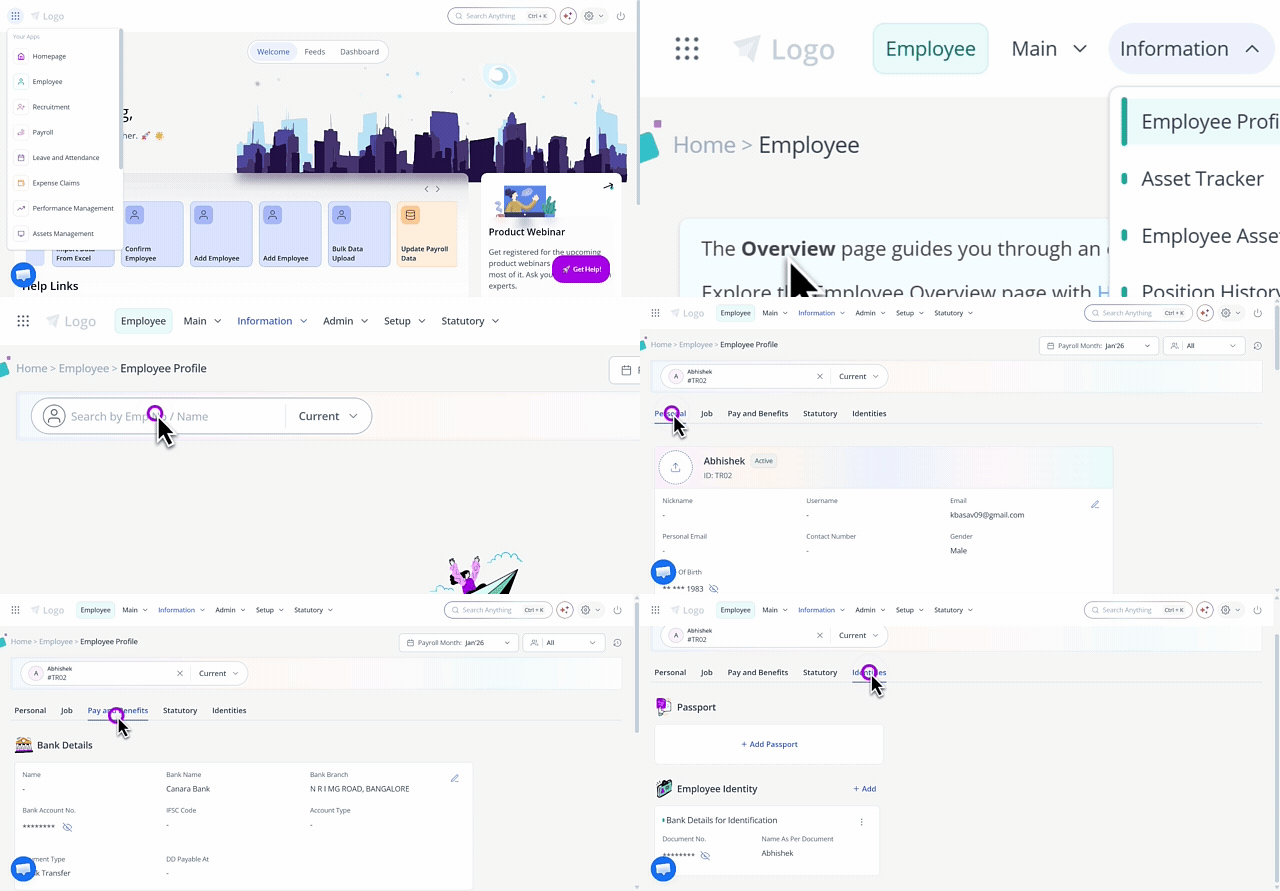
To view an employee’s profile detail on the Employee Profile page, hover over the 9 dots and select Employee > Information > Employee Profile.
In the Search Employee search box, search for the employee whose information you want to view. The employee's details appear.
Under the Personal tab, you can view, add, and edit the following information:
Basic Info
Personal Info
Biometric Details
Marital Info
Address
Education
Course Details
Emergency Contact
Family Details
Under the Job tab, you can view, add, and edit the following information:
Employment Details
Contract Details
Previous Employment
Background Check
Access Card Details
Under the Pay and Benefits tab, you can view, add, and edit the following information:
Bank Details
Insurance
Nomination
Bonus Register
Employee Benefits
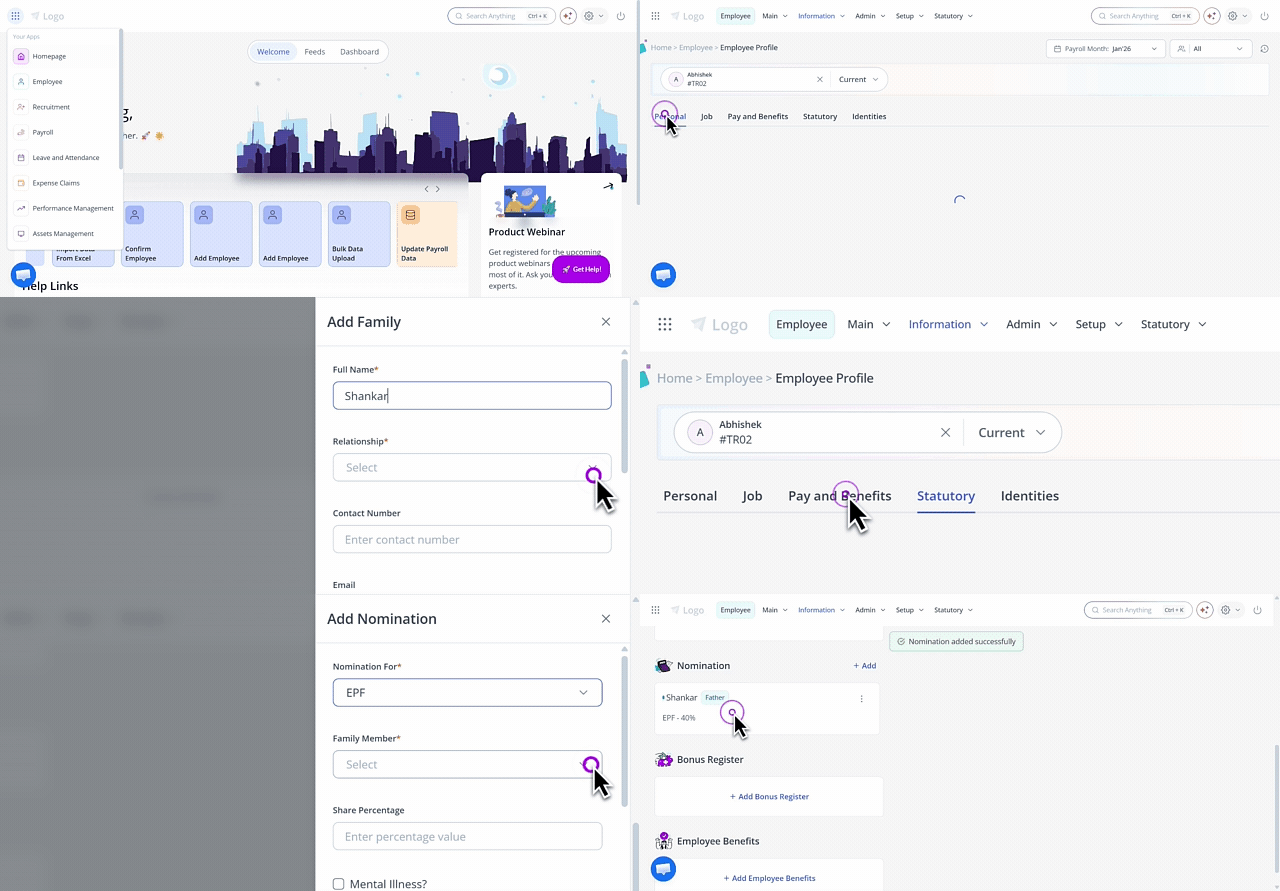
Under the Statutory tab, you can view, add, and edit the following information:
ESI Account
PF Account
LWF
Bank Details
Visa Details
Under the Identities tab, you can view, add, and edit the following information:
Passport
Employee Identity
Ensuring compliance with the upcoming DPDP Act, 2023
To protect employees’ personal information, organizations should start preparing for compliance with the Government of India’s Digital Personal Data Protection (DPDP) Act, 2023.
As a result, on the Employee Profile page, certain personal information of an employee is hidden by default. This includes:
Government IDs: PAN, Aadhaar, Passport Number, Driving License, etc.
Banking & Financial Details: Bank Account Number, IFSC
Contact Details: Personal Email ID, Personal Phone Number, Address
Employee Information: Date of Birth, Blood Group, Height, Weight, Marital Status, Emergency Contact
You can view this information by clicking the eye icon. If you don’t manually hide it, the system will automatically conceal the information again after fifteen seconds.
Frequently Asked Questions
What is the new Employee Profile page in greytHR?
The new Employee Profile page in the greytHR Admin portal allows you to view, add, and edit an employee’s personal, job, statutory, and benefits-related information, all from one page, ensuring records remain accurate and up to date.
Why is it important to maintain employee profiles?
Maintaining employee profiles helps organizations keep accurate records, make informed decisions on employee development, promotions, and benefits, ensure legal compliance, and build trust through transparent and reliable information management.
How can the admin access the Employee Profile page?
To view an employee’s profile detail on the Employee Profile page, hover the 9 dots and select Employee > Information > Employee Profile.
How can an admin search for an employee’s profile?
Use the Search Employee search box to find the employee whose profile you want to view or edit. The employee’s details will appear once selected.
What information is available under the Personal tab?
Under the Personal tab, you can view, add, and edit:
Basic Info
Personal Info
Biometric Details
Marital Info
Address
Education
Course Details
Emergency Contact
Family Details
What details can I manage under the Job tab?
Under the Job tab, you can view, add, and edit:
Employment Details
Contract Details
Previous Employment
Background Check
Access Card Details
What information is available under Pay and Benefits?
Under the Pay and Benefits tab, you can manage:
Bank Details
Insurance
Nomination
Bonus Register
Employee Benefits
How can I add a nominee in greytHR?
To add a nominee, you must first update the family member details in the Family Details section. Only the family members added there will be available for selection in the Nomination section. Once updated, you can proceed to select and assign them as nominees.
What statutory details can I update in the Employee Profile?
Under the Statutory tab, you can view, add, and edit:
ESI Account
PF Account
LWF
Bank Details
Visa Details
What details are included under the Identities tab?
Under the Identities tab, you can view, add, and edit:
Passport details
Employee identity information, such as Aadhar, PAN number, etc.
Why is some employee information hidden by default?
To prepare for compliance with the Digital Personal Data Protection (DPDP) Act, 2023, certain sensitive employee information is hidden by default to protect personal data.
What information is hidden due to DPDP compliance?
The following details are hidden by default:
Government IDs (PAN, Aadhaar, Passport Number, Driving License, etc.)
Banking and financial details (Bank Account Number, IFSC)
Contact details (Personal Email ID, Personal Phone Number, Address)
Employee information (Date of Birth, Blood Group, Height, Weight, Marital Status, Emergency Contact)
How can admins view hidden employee information?
Click the eye icon to view hidden information. If you do not manually hide it again, the system will automatically conceal the information after fifteen seconds.
What changes are included in the enhanced Employee Profile page?
With the enhanced Employee Profile page, multiple tabs previously available under Employee > Information—such as Bank/PF/ESI, Family Details, Passport & Visa, Previous Employment, Nomination, Registration Details, Insurance, and Employee Benefits—are now consolidated into a single profile view.
How is Previous Employment tenure calculated?
Under the Job tab, in the Previous Employment section, the tenure is calculated based on the start and end dates entered for each past employment record. These details are automatically used to compute the employee’s overall experience.
Is the new Employee Profile page available to all users?
No. The new Employee Profile page is not yet available to all users. Our team will keep you informed once it is available in your account.
Related articles:
Was this article helpful?
More resources:
▶ Video - Watch our how-to videos to learn more about greytHR.
📢 Product Update - Read about the product updates.