Manage employee information using the Employee Directory
Updated in May - 2026 | Subscribe to watch greytHR how-to video
Adding employee details to an employee or team directory involves capturing and maintaining employee information in a centralized system. This directory acts as a single repository, making it easy to access, search, and manage employee details whenever needed.
The redesigned Employee Directory page in the greytHR Admin portal allows you to view and maintain your employees' information details, such as your employees' contact details, designation, location, joining date, and date of birth.
Watch the video to learn more about Employee Directory page in greytHR.
View employee details
To view employee details in greytHR, follow the steps below:
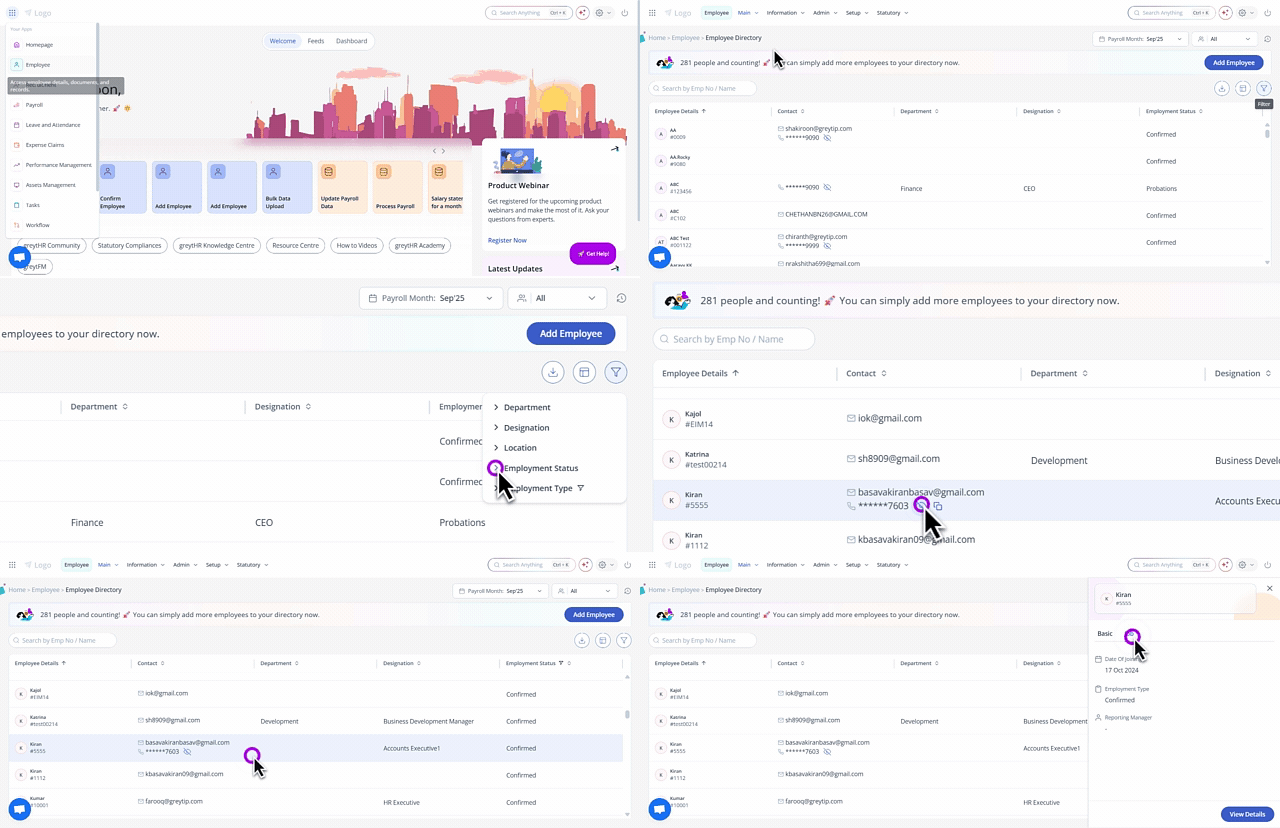
From the greytHR Admin portal, hover over the 9 dots and select
Employee > Main > Employee Directory.On the Employee Directory page, you can view key employee information at a glance.
Employee information and privacy
The contact number of an employee is hidden by default to comply with the Digital Personal Data Protection (DPDP) Act, 2023.
To view the contact number, click the eye icon.
You can copy an employee’s contact number or email ID and paste it into the search box to quickly locate their profile.
You can search for employees using name, employee number, or email ID to quickly locate their profile.
Viewing employee details
At the top of the page, you can see the total number of employees in your database.
To add a new employee, click Add Employee.
Click on an employee card to open a side panel with a consolidated view of their basic and job details.
Click View Details to see the employee’s complete profile.
Customizing the Employee Directory
You can rearrange columns by dragging and dropping them to customize the layout.
Use the Filter option to display specific employee data (for example, employees from a particular location). The filter icon displays the number of filters applied, helping you track active filters easily.
Use the Columns option to add more columns from the predefined available data fields.
You can resize columns (increase or decrease column width) and sort columns in ascending or descending order.
Exporting data
To download employee details, use the Export option to download the table in .xlsx format.
Frequently Asked Questions
What is the Employee Directory in greytHR?
The Employee Directory is a centralized repository in the greytHR Admin portal that stores and manages employee information. It helps admins easily access, search, and maintain employee details whenever required.
What employee details can admins view in the Employee Directory?
Admins can view key employee information such as contact details, designation, location, joining date, and date of birth.
How does an admin access the Employee Directory page?
From the greytHR Admin portal, hover over the 9 dots and select Employee > Main > Employee Directory.
Why is an employee’s contact number hidden?
Employee contact numbers are hidden to comply with the Digital Personal Data Protection (DPDP) Act, 2023. Admins can view the contact number by clicking the eye icon.
Can an admin search for an employee using their contact number or email ID?
Yes. Admins can copy an employee’s contact number or email ID and paste it into the search box to quickly find their details.
How can an admin add a new employee from the Employee Directory?
At the top of the page, admins can see the total number of employees in your database. To add new employees, click Add Employee.
How can admins view detailed information about an employee?
Click the employee card to open a side window with a consolidated view of basic and job details. Click View Details to see complete employee information.
Can admins customize the Employee Directory layout?
Yes. Admins can rearrange columns by dragging them and use the Columns option to add more fields to the directory view.
Customizing the Employee Directory
Rearrange columns by dragging and dropping them to customize the layout.
Use the Filter option to display specific employee data (for example, employees from a particular location). The filter icon displays the number of filters applied, helping you track active filters easily.
Use the Columns option to add more columns from the predefined available data fields.
You can resize columns (increase or decrease column width) and sort columns in ascending or descending order.
How can the admin filter employee information?
Use the Filter option to display only the information you need, such as viewing employees from a specific location. The filter icon also displays the number of filters applied, helping you track active filters easily.
Can an admin download employee details from the Employee Directory?
Yes. Use the Export option to download employee details from the Employee Directory in .xlsx format.
Related articles:
Was this article helpful?
More resources:
▶ Video - Watch our how-to videos to learn more about greytHR.
📢 Product Update - Read about the product updates.