Set up shift change workflow with greytHR’s Request Hub
Updated in November - 2025 | Subscribe to watch greytHR how-to video
Managing shifts manually in industries with 24/7 operations is complicated and time-consuming. It often leads to communication gaps, staffing shortages, and compliance issues that impact both efficiency and employee satisfaction.
The new Shift Change Request workflow in greytHR’s Request Hub helps you automate this process with well-defined steps for requesting, reviewing, and approving shift changes.
It helps you save time, ensure compliance, and improve employee satisfaction with transparent shift management. Employees or managers can raise requests that route through configured reviewers.
Set up a shift change workflow request
To set up the shift change workflow request, from your greytHR Admin portal, hover over the 9 dots and select Workflow > Setup > Workflow Levels > Add Workflow Levels.
General Settings
From the Select workflow type dropdown list, select Request Hub.
Enter the Policy Name as Shift Change Workflow. You can also add a Policy Description if needed.
Select the Request Type as Shift Change.
Select the required option from the Select Employee Filter dropdown list.
Click Save Policy to save the General Settings.
Click Next to move to the Workflow Levels settings.

Workflow Levels
Under the Workflow Levels settings, select the Workflow Initiator as Employee or Manager.
Click Add Task to create a task list for the initiator.
On the Create Task window, provide the Task Name and Description.
You can also add attachments and make it mandatory for the reviewer to review.
Click Add Form to create a customized form for the reviewer.
Click Save to finalize the task creation.
Select the required number of reviewer levels (1 Level/2 Levels/3 Levels/4 Levels/5 Levels). You can also create a task list for the selected reviewer, if required.
Select Application Actions based on your requirements. Available actions for reviewers include:
Approve: Approve the request, and the workflow will get closed, and the employee will be notified.
Approve & Forward: Approve the request and forward it to the next reviewer (available when multiple reviewers exist).
Reject: Reject the request (available for all reviewer levels).
Click Save Policy to save the Workflow Levels.
Click Next to move to the Workflow Policy settings.

Workflow Policy
Under the Workflow Policy settings, in the Shift Change Limit Period section, you can define how many times employees are allowed to request shift changes in a day, week, or month.
In the Date Criteria section, you can set the number of days in the past or future for which an employee is allowed to request a shift change.
You can also restrict shift change requests to specific shifts by selecting them from the available list.
In the Restriction Criteria section, you can set the maximum number of consecutive days for shift change requests and restrict employees from requesting changes for specific shifts.
In the Advance Notice section, you can set the minimum number of days employees must submit shift change requests in advance.
In the Auto Approve After Days, you can set the number of days after which shift change requests are auto-approved.
In the Reason Criteria, you can make it mandatory or optional for employees to provide a reason when applying, and define the reason type to be selected.
Click the Finish and Save Policy option to create the Shift Change Workflow request.

Activate the workflow request
After creating the Shift Change Workflow request, you need to activate it. Go to the Workflow Levels page and click the Activate button on the policy card, and choose the required date.

Note:
You cannot edit the workflow request after activating it, but you can Delete it.
Review shift change workflow requests
To review the requests to change employee shifts, from your greytHR Admin portal, hover over the 9 dots and select Workflow > Review > Request Hub.
Search for the Request Type as Shift Change.
On the Review Request page, complete the assigned task, if any, fill out the form, Mark as Completed, and click Save Changes.
Note: You can view the previous actions under the Timeline section.In the Approval Details section, accept/reject or forward the shift change request as required. Once done, click Submit.
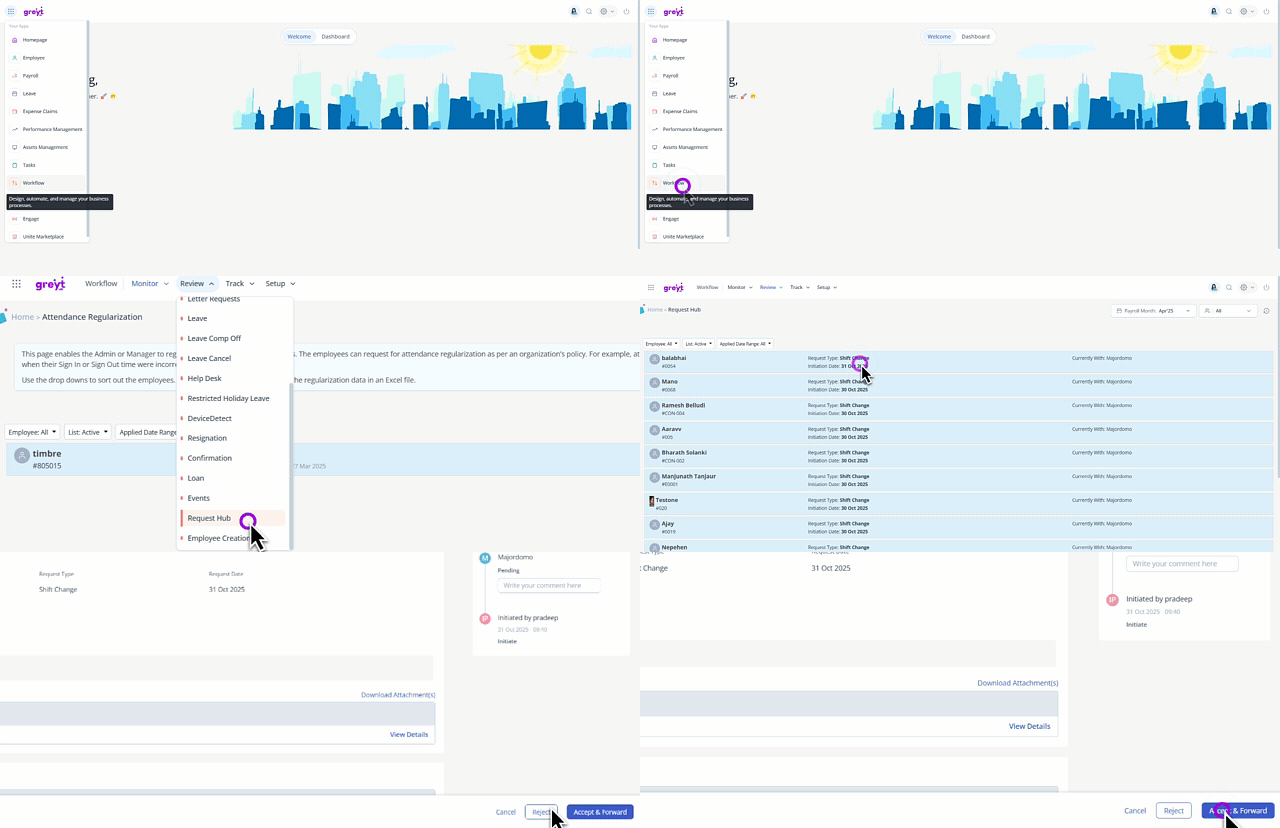
To view the approved or rejected requests, select the Completed option from the List dropdown.
Frequently Asked Questions
What is the Shift Change Request workflow in greytHR’s Request Hub?
The Shift Change Request workflow is an automated system within greytHR’s Request Hub that streamlines the process of managing shift change requests.
It allows employees to submit requests, which are then routed through a predefined approval process for managers or HR to review and approve or reject. This replaces manual, time-consuming methods and helps prevent communication gaps and errors.
Why should I use this workflow for managing shifts?
Using the shift change workflow offers several key benefits:
It automates the entire process of requests, reviews, and approvals, reducing manual administrative work.
You can set specific limits and restrictions to ensure shift changes adhere to company policies and labor regulations.
The clear, transparent process minimizes communication gaps and ensures a consistent approach to shift management.
A transparent and easy-to-use system makes employees feel more in control and satisfied with the process.
How do I set up the Shift Change Workflow in greytHR?
From your greytHR Admin portal, hover over the 9 dots and select Workflow > Setup > Workflow Levels > Add Workflow Levels. From there, you will follow a three-step process:
General Settings: Select Request Hub as the Workflow Type and Shift Change as the Request Type. Give your policy a name and description.
Workflow Levels: Define the workflow initiator (Employee or Manager), add tasks for the initiator, and set up the approval levels (1 to 5 reviewers). You can also add tasks or forms for the reviewers.
Workflow Policy: Configure detailed rules, such as the maximum number of shift changes per day/week/month, advanced notice periods, auto-approval settings, and whether providing a reason for the request is mandatory.
Can I customize the approval process?
Yes, you can customize the approval process for the shift change workflow:
Set the Workflow Initiator as either an Employee or a Manager.
Define up to five levels of reviewers.
Create custom tasks and forms for both the initiator and reviewers.
Choose from various Application Actions for reviewers, such as Approve & Forward or Reject.
How can I control the frequency of shift change requests?
In the Workflow Policy settings, you can use the Shift Change Limit Period section to define how many times an employee is allowed to request a shift change within a specific time frame.

Can a shift change request be automatically approved?
Yes. In the Auto Approve After Days section of the Workflow Policy, you can set a specific number of days after which a pending shift change request will be automatically approved.

Can I restrict shift change requests for specific shifts or dates?
Yes. The Date Criteria section allows you to set a limit on how far in the past or future an employee can request a shift change.
You can also use the Restriction Criteria section to restrict requests for specific shifts or set a maximum number of consecutive days for which a change can be requested.
What happens after I create the workflow policy?
After creating and saving the policy, you need to activate it. Go back to the Workflow Levels page, find the policy card, and click the Activate button. You will then need to choose the activation date.
Can I edit a workflow policy after it's activated?
No, you cannot edit an activated workflow policy. However, you can delete it if needed.
How do I review and approve a submitted shift change request?
As a reviewer, go to Workflow > Review > Request Hub from your greytHR Admin portal.
Search for Shift Change request type.
On the Review Request page, you can complete any assigned tasks, fill out forms, and view the history of actions under the Timeline section.
In the Approval Details section, you can either accept or reject the request and then click Submit.
Can I have multiple shift change workflows for different employee groups?
Yes. You can create multiple policies by using the Employee Filter option to target specific employee groups or locations with different workflow rules.
Related articles:
Was this article helpful?
More resources:
▶ Video - Watch our how-to videos to learn more about greytHR.
📢 Product Update - Read about the product updates.