Enable Elapsed Timer visibility for employees on greytHR mobile app
Updated in December- 2025 | Subscribe to watch greytHR how-to video
Tracking work hours accurately is an important part of managing attendance and ensuring productivity. Employees often need a clear view of the time they have spent at work to plan their day effectively and avoid errors in attendance records.
The Elapsed Timer feature on the greytHR mobile app helps employees see the duration since their first sign-in of the day, encouraging better time management and reducing early sign-outs or regularization requests.
However, not all organizations wish to expose this information to employees due to internal policies or culture. To support this, greytHR now allows admins to control whether employees can see the Elapsed Timer on the mobile app.
Enable Elapsed Timer visibility for employees
To enable the visibility of the Elapsed Timer for employees, from the greytHR Admin portal, go to Settings icon > System Settings > Attendance > Attendance Option.
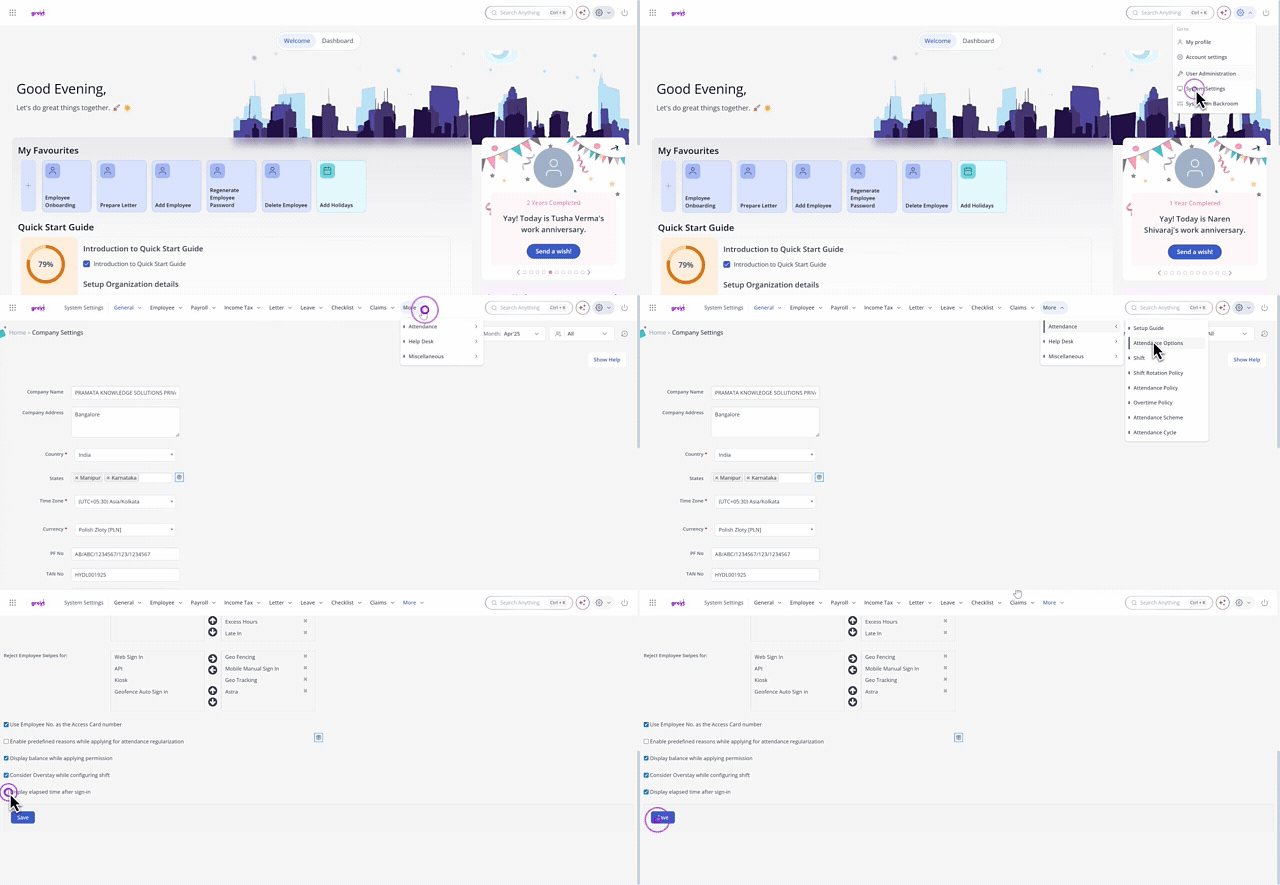
On the Attendance Options page, scroll to the bottom of the page, and select the checkbox Display elapsed time after sign-in to enable the timer on the mobile app.
Click Save to apply the changes
Note: To hide the timer from employees on the mobile app, disable the checkbox.
Important notes
The timer works only if at least one mobile swipe capturing method is configured (Geofence, Geo Tracking, or Mobile Manual Sign-In).
It starts from the first valid IN swipe of the day, updates using backend time, and stops at sign-out.
Supports all shift types, and continues tracking in the backend even if hidden mid-day. For split shifts, the timer resets for each session.
Frequently Asked Questions:
What is the Elapsed Timer?
The Elapsed Timer feature displays the total duration you have been signed in for the day, starting from your first valid IN swipe. It appears on the greytHR mobile app as a real-time timer, showing the time in hours and minutes.
Who can control the visibility of the elapsed timer?
Admins can enable or disable the timer for employees. To control this setting, from the greytHR Admin portal, go to Settings icon > System Settings > Attendance > Attendance Option.
On the Attendance Options page, scroll to the bottom of the page, and select the checkbox Display elapsed time after sign-in to enable the timer on the mobile app.
Click Save to apply the changes. Changes are applied immediately after saving.
We can simply say that if the checkbox is not selected, the feature is not enabled for the employees on the app.
Why is the Elapsed Timer not appearing on my mobile app?
The timer will work only if at least one mobile swipe method (Geofence, Geo Tracking, or Mobile Manual Sign-In) is set up.
Does the elapsed timer work for all shift types?
Yes, it works for regular shifts, cross-midnight shifts, and split shifts. For split shifts, the timer resets for each session.
Can employees reset the timer?
No, the timer tracks automatically and cannot be reset manually.
What happens if the admin disables the timer in the middle of the day?
If the admin turns off the timer during the day:
The timer will disappear from the mobile app after the app refreshes or performs a configuration sync.
The backend will continue tracking the elapsed time in the background.
If the admin enables the timer again later, it will reappear on the mobile app and display the correct elapsed time based on the backend data.
Related Articles:
Track/View your work time duration on the greytHR mobile app
Was this article helpful?
More resources:
▶ Video - Watch our how-to videos to learn more about greytHR.
📢 Product Update - Read about the product updates.