greytHR Xero Integration: Sync Payroll Journal Vouchers with Xero
Updated in July - 2026 | Subscribe to watch greytHR how-to video
Payroll admins in Singapore, UAE, and other GCC/SEA markets who use Xero for accounting need to manually export Journal Vouchers (JVs) from greytHR and upload them into Xero to keep payroll records accurate. This process is time-consuming, error-prone, and lacks real-time updates, making payroll accounting harder to manage.
With the integration of greytHR Payroll and Xero via Unite Marketplace, payroll Journal Vouchers (JVs) can be directly synced from greytHR to Xero.
What is Xero?
Xero is a cloud-based accounting platform that helps businesses manage invoicing, bank reconciliation, and financial reporting. It is widely used by SMEs across Singapore, the UAE, and other GCC/SEA markets.
View the Xero integration in greytHR
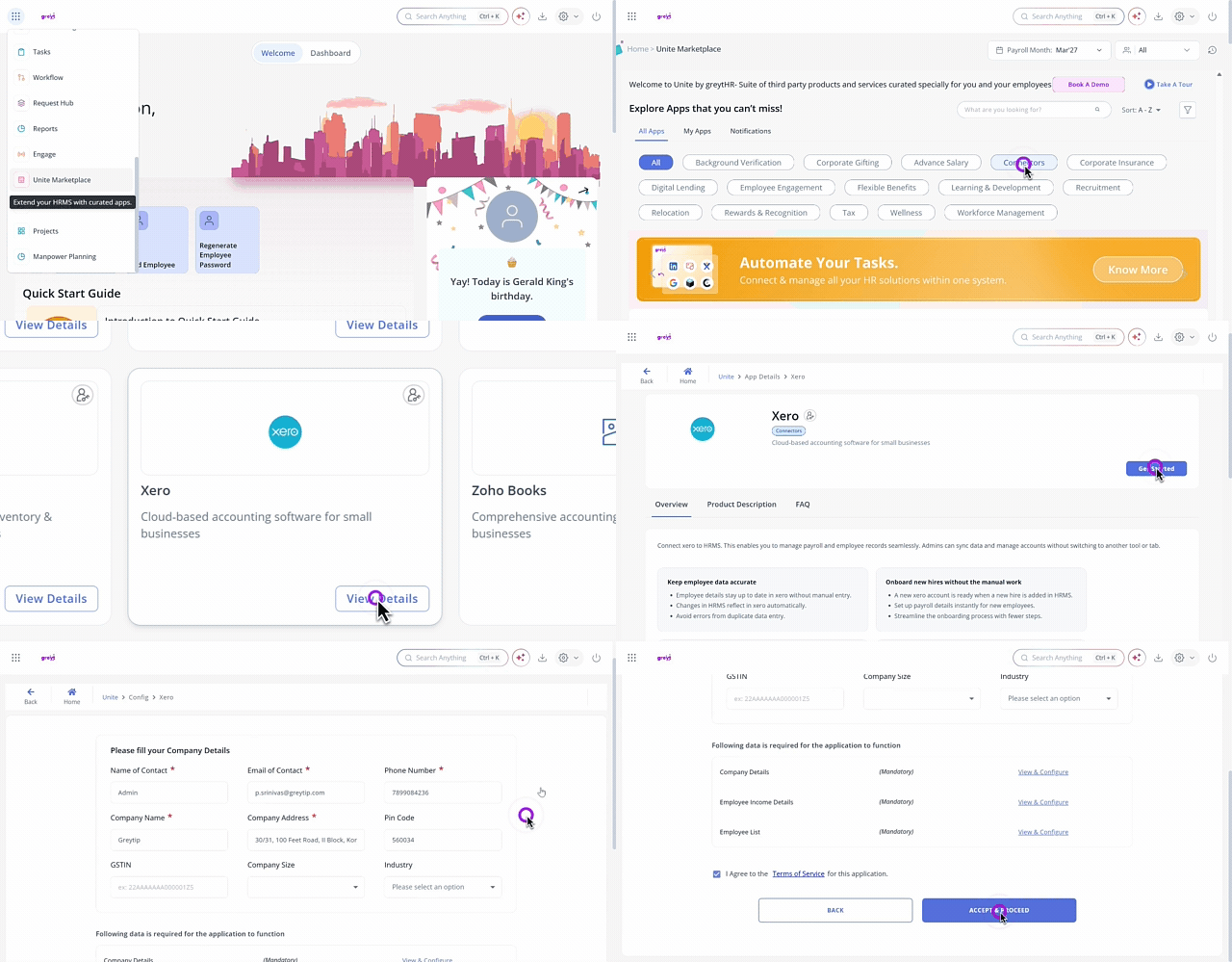
The integration of Xero with greytHR is available via the greytHR Unite Marketplace.
From the greytHR Admin portal, go to Unite Marketplace > Connectors.
Search for Xero app among the available apps.
Click View Details.
Click Get Started, fill in the details, and accept the terms and conditions to activate it.
Note: This feature is only available for users with Unite access and permissions.
Set up the Xero integration with payroll in greytHR
You can set up the Xero integration in two steps:
Connect your Xero account.
Create rules for syncing payroll data.
Connect the Xero account in greytHR Unite
On the Xero page, click Open > Settings > Add Connection. A pop up appears.
Fill in Connection Name and select the Connection Type from the dropdown.
You'll be redirected to Xero — log in using your Xero account credentials and authorise access (OAuth-based).

Map salary components to Xero's Chart of Accounts
On the Xero page, click Open > Rules > + Add Rule.
Enter the Rule Name and other details as required.
You can filter the data using Department, Location, or other criteria based on your needs.
Choose the salary components from the dropdown list and match with the corresponding Xero Chart of Accounts entry (marked as debit or credit).
You need to ensure that the total debit and credit values are equal — otherwise, the rule won't work.
Click Save Rule to apply.
Note: You can create multiple rules for different departments, locations, or other criteria.
Sync payroll Journal Vouchers to Xero
On the Xero page, click Sync Data to Xero. Select the rule you created earlier,
Choose the payroll year and month, and click Run.
Review the data, select a journal date, and click Publish.
The entries will be visible directly in your Xero account under the relevant journals section.
Disable or reconfigure the Xero connection
Admins can disable or reconfigure the Xero connection at any time.
Go to Unite Marketplace > Connectors > Xero > Open > Settings.
Under Settings select the Access Control tab.
From the App Actions click Disable App and confirm Yes.

Frequently Asked Questions:
What is the greytHR–Xero integration, and why is it needed?
The greytHR–Xero integration, enabled via Unite, allows direct syncing of payroll journal vouchers (JVs) into Xero. This eliminates the need for manual data exports and uploads, ensuring accurate, real-time payroll accounting.
How do payroll admins enable the Xero connector?
Go to Unite Marketplace > Connectors, search for Xero, click Enable, fill in the required details, and accept the terms and conditions.
Where can admins connect their Xero account?
Go to the Xero page in Unite, click Open > Settings > + Add Connection, and log in with your Xero credentials to authorise the connection.
How can admins map salary components to Xero's Chart of Accounts?
On the Xero page, click Open > Rules > + Add Rule, then match each salary component to the corresponding Xero Chart of Accounts entry as debit or credit. Total debits and credits must be equal before saving.
Can I edit an existing mapping rule?
Yes. Existing rules can be edited from the Rules section on the Xero page in Unite. Be cautious while editing rules that have already been used to sync data.
Can I disconnect or reconfigure the Xero connection?
Yes, users can disable or reconfigure the Xero connection at any time from the Xero connector settings in Unite Marketplace.
Related Links: