Automate job approvals using employee categories in greytHR Recruit
Updated in May - 2026 | Subscribe to watch greytHR how-to video
Automating job approvals accelerates hiring by reducing delays, streamlining workflows, and eliminating manual follow-ups. It enhances accuracy, accountability, and compliance for a smoother, more efficient process.
With the help of the Employee Categories, you can automate the job approval workflows by applying predefined conditions. The Job Approval feature in greytHR Recruit helps streamline the recruitment process by automating job approval workflows.
Note: You can create new employee categories as per your organizational requirements from the Employee Position page.
Automate job approvals in greytHR Recruit
From the greytHR Admin portal, go to Recruit > Settings > JOB SETUP > Job Approval.
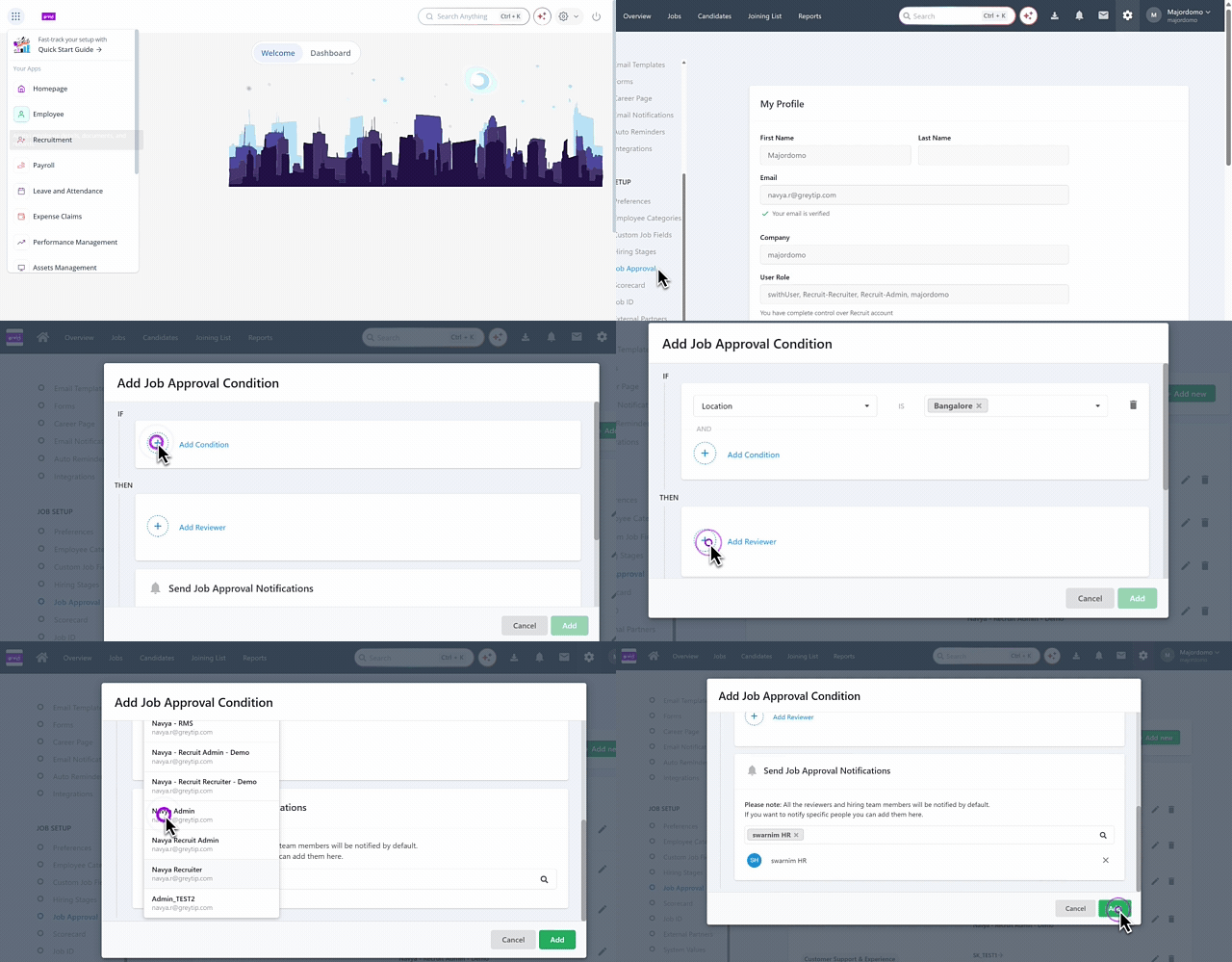
Click Add job approval condition.
Click +Add new
From the dropdown menu, select the Employee Category for the first condition and choose the corresponding value for the second condition.
Note: Only the categories enabled on the Employee Categories page are available for selection.Click + Add Reviewer to add a reviewer and click Add.
Note: By default, all reviewers and hiring team members are notified automatically. If you want to notify specific individuals, you can use the search box to add their names manually.
Frequently Asked Questions
What is the Job Approval feature in greytHR Recruit?
The Job Approval feature automates the approval process for job requisitions by applying predefined conditions based on employee categories. This helps reduce manual follow-ups and speeds up the hiring process.
What are employee categories in greytHR Recruit?
Employee categories are organizational attributes such as Department, Designation, Location, or Employment Type that can be used to define approval conditions for job requisitions.
Why should I automate job approvals?
Automating job approvals helps:
Reduce approval delays
Eliminate manual follow-ups
Improve accountability
Ensure compliance
Speed up hiring decisions
Where can I configure job approval conditions?
From the greytHR Admin portal, hover over the 9 dots and go to Recruitment > Settings > Job Setup > Job Approval.
Click Add job approval condition.
Click +Add new
From the dropdown menu, select the Employee Category for the first condition and choose the corresponding value for the second condition.
Note: Only the categories enabled on the Employee Categories page are available for selection.Click + Add Reviewer to add a reviewer and click Add.
Can I create multiple job approval conditions?
Yes. You can create different approval conditions based on various employee categories and their corresponding values.
Which employee categories are available for selection?
Only the employee categories that are enabled on the Employee Categories page are available when configuring approval conditions.
Can I create new employee categories?
Yes. You can create and manage employee categories from the Employee Position page based on your organization's requirements.
How do I assign reviewers to a job approval condition?
After defining the approval condition, click + Add Reviewer, select the required reviewer, and click Add.
Who receives notifications when a job approval is triggered?
By default, all reviewers and hiring team members are notified automatically.
Can I notify only specific individuals?
Yes. You can use the search box to manually add specific individuals who should receive notifications.
Can I assign more than one reviewer to a job approval condition?
Yes. You can add multiple reviewers to the same approval condition.
What happens when a job matches a configured approval condition?
The system automatically triggers the approval workflow and notifies the assigned reviewers.
Can different employee categories have different reviewers?
Yes. Each approval condition can have its own set of reviewers.
Can I modify an existing job approval condition?
Yes. You can edit the configured conditions and update the employee category, values, and reviewers as needed.
Related articles:
Was this article helpful?
More help resources:
▶ Video - Watch our how-to videos to learn more about greytHR.
❓ FAQs - Solve your queries using FAQs.
📢 Product Update - Read about the product updates.