Set up employee category–based access in greytHR Recruit
Updated in January - 2026 | Subscribe to watch greytHR how-to video
Large organizations often operate multiple entities under one system. In such setups, recruiters and HR teams need clear control over who can see and manage what data. Without proper access control, recruiters may view data from other business units, assign incorrect hiring teams, and unintentionally expose sensitive employee and candidate information.
greytHR Recruit introduces employee category–based restrictions, allowing HR admins and recruiters to be able to access employees and jobs linked to their own business unit. This keeps data secure, reduces confusion, and improves overall efficiency, while still allowing central teams to have oversight where needed.
Configure employee visibility using employee filters
greytHR Admin can control employee visibility using an employee filter. This filter determines which employees an HR user,such as a Recruit Admin or Recruiter can view and select within Recruit.
The greytHR Admin can do this from Settings > User Administration > Users.
Click on the Edit option for a user.
From the Employee Filter drop-down, select the required option.
Click on the + icon to add the category.
Enter a filter title.
From the Category Type dropdown, select the required category and double-click on the options to add them.
Select the Employee Type as All/Current/Resigned.
Select the Employee Status as needed.
Click Save Changes.
Once a filter is assigned, the user can access only the employee data that matches the filter criteria while working in Recruit, ensuring they interact only with employees relevant to their assigned business unit. This restriction applies only to employee visibility and does not affect job visibility.
Restrict employee visibility for hiring managers
As a hiring manager, the primary responsibility is to raise job requests from the ESS portal. In organizations with multiple entities under a single system, hiring managers should have access only to employees from their own company.
The greytHR Admin can restrict hiring managers from viewing employees of other entities while they raise job requests in Recruit, ensuring accurate access control and data privacy.
To do this, from the greytHR Admin portal, hover over the 9 dots and select Recruitment > Settings.
Under the JOB SETUP section, click Preferences.
Enable the toggle option for Restrict Employee Visibility and select the restriction criteria.
If Company is selected as the restriction criteria, hiring managers will see and engage with employees from their own company.
Enable the toggle option for Limit job creation access based on employee category (for hiring managers) and select the restriction criteria.

Restrict job visibility for recruiters by employee categories
In Recruit, job access can be restricted for admin users using an employee category–based filter. This filter is set from the Team Members page and assigned to Recruit Admins or Recruiters.
Once applied, the user can create and view only jobs that match the selected categories, see limited dropdown options during job creation. Job data from other companies or locations will not be visible, ensuring proper access control.
To restrict such access, hover over the 9 dots and select Recruitment > Settings.
Under the COMPANY section, select Team Members > MANAGE ACCESS.
For the required user, under the Actions tab, click Manage Access.
From each of the employee category dropdowns, select the required option.
Click Save.
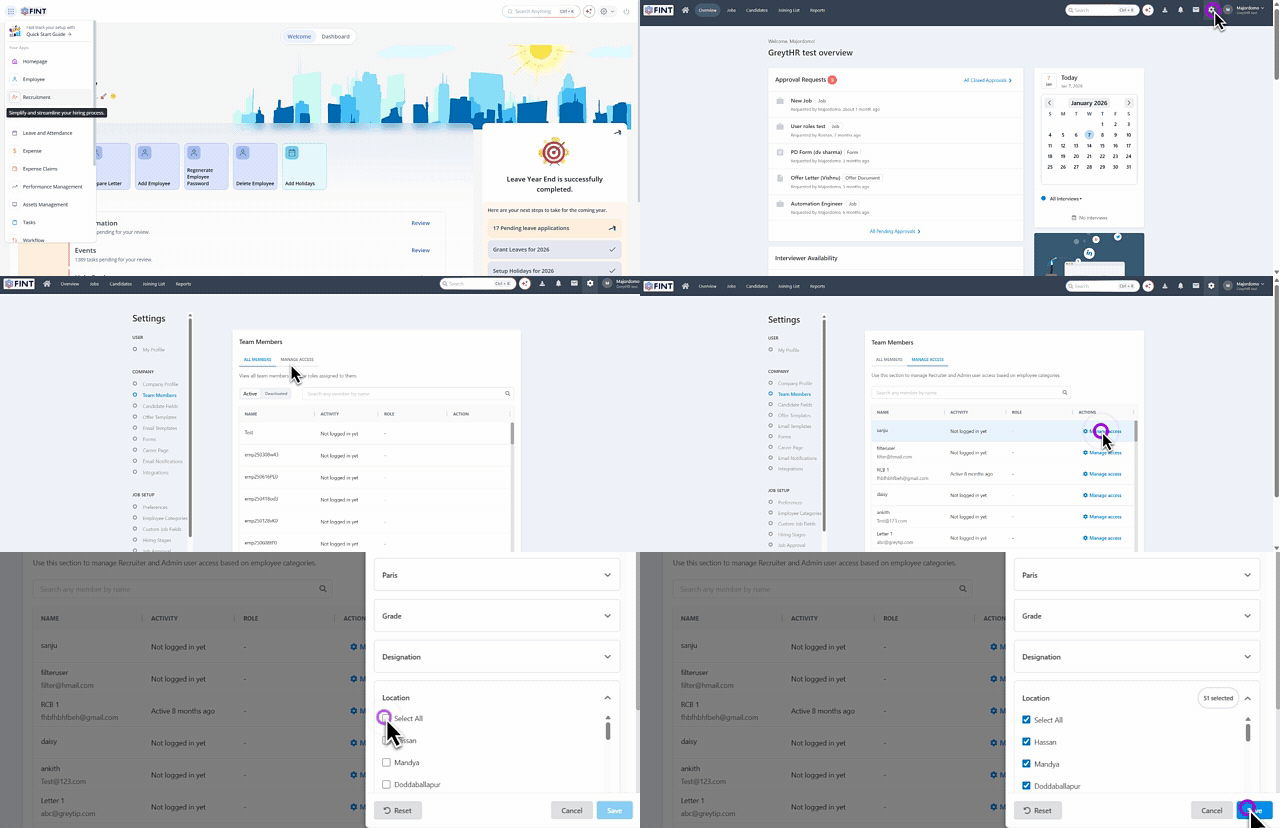
Example: If a Recruit Admin or Recruiter is assigned a filter with a specific company and location, they can create and view jobs only for that company and location. During job creation, the dropdowns will show only the allowed values, and the user will not be able to see job details related to any other company or location.
Where do employee category–based restrictions do not apply in Recruit?
Employee category–based restrictions apply to employee-related and job-related visibility within Recruit workflows. This means any employee data shown in Recruit such as through employee search results, employee dropdowns, or job-specific actions, is filtered based on the employee categories assigned to the user.
These restrictions do not impact Recruit system-level settings and do not apply to system-level forms or templates, specifically email templates and offer letter templates, notification rules, or global Recruit configurations. Since templates are configured at a global level and are not tied to a specific employee, job, or entity, they remain visible and usable regardless of employee category–based access controls. The same applies to notification configurations and job setup configurations.
Employee category restrictions also do not apply to the Candidate Pool. Candidates exist as a master record across the system, and access is not restricted at the candidate master level. For example, if a recruiter is working on a job under Entity A, they can view and act on candidate details only for that specific job. If the same candidate is associated with another job under Entity B, the recruiter will not be able to see any job-related details, interviews, or actions associated with Entity B.
In summary, employee category–based restrictions apply strictly within Recruit workflows and job-level visibility, while system-level settings remain universally accessible, as they are global system assets and do not govern access to candidates globally.
Frequently Asked Questions
Why is access control important in multi-entity organizations?
In organizations with multiple entities under one system, access control ensures recruiters and HR teams see and manage only relevant data. Without it, users may access data from other business units, assign incorrect hiring teams, or expose sensitive employee information.
Can Recruit admins restrict hiring managers based on employee categories in greytHR Recruit?
Employee category–based restrictions limit access based on categories such as company, location, or department. Recruiters and hiring managers can view and access only the jobs and employee data based on the employee categories assigned to them.
Note: To apply any employee category-based restrictions, you need to contact the greytHR Support Team and raise a support ticket.
Does an employee visibility filter also limit the jobs a user can see?
No. Filters applied only affect employee visibility (the ability to search for/view existing employees) and do not automatically restrict job visibility.
Can recruit admin restrict Hiring Managers to see employees from their own company when raising job requests?
Recruit admins can restrict hiring managers to see employees from their own company from raising job requests by raising a support ticket to the greytHR support team.
Can the greytHR admin limit which categories a Hiring Manager can create jobs for?
Yes. Enable the toggle "Limit job creation access based on employee category" in the Hiring Preferences section. This ensures managers don't accidentally create job openings for the wrong department or branch.
Can a recruit admin restrict a Recruiter from seeing jobs in other locations?
Recruit admins can restrict a recruiter from seeing jobs in other locations by raising a support ticket to the greytHR support team.
What happens during job creation if a Recruiter has restricted access?
The recruiter will only see limited options in the dropdown menus. For example, if they are restricted to "Company A," they will not be able to select "Company B" when creating a new job posting.
Can a recruit admin change these visibility settings at any time?
No, Recruit admins need to contact the greytHR Support Team and raise a support ticket to apply visibility and access control settings to ensure data integrity.
Related articles:
Was this article helpful?
More resources:
▶ Video - Watch our how-to videos to learn more about greytHR.
📢 Product Update - Read about the product updates.