Add external interviewers in the hiring process with greytHR Recruit
Updated in December - 2025 | Subscribe to watch greytHR how-to video
Many organizations need to involve external interviewers to ensure that hiring decisions are accurate, unbiased, and supported by the right expertise. In several situations, internal teams may not always have the required technical knowledge for specialized roles, and staffing agencies frequently engage external recruiters, clients, or hiring managers to manage high-volume or niche evaluations.
This creates a need to bring in freelancers or independent subject-matter experts who can assess candidates objectively and validate their skills.
greytHR Recruit now enables external interviewers to participate in the hiring process through a secure, time-bound magic link, while giving recruiters a simple way to add, manage, and track these contributors with full control and visibility.
Add external interviewers to greytHR Recruit
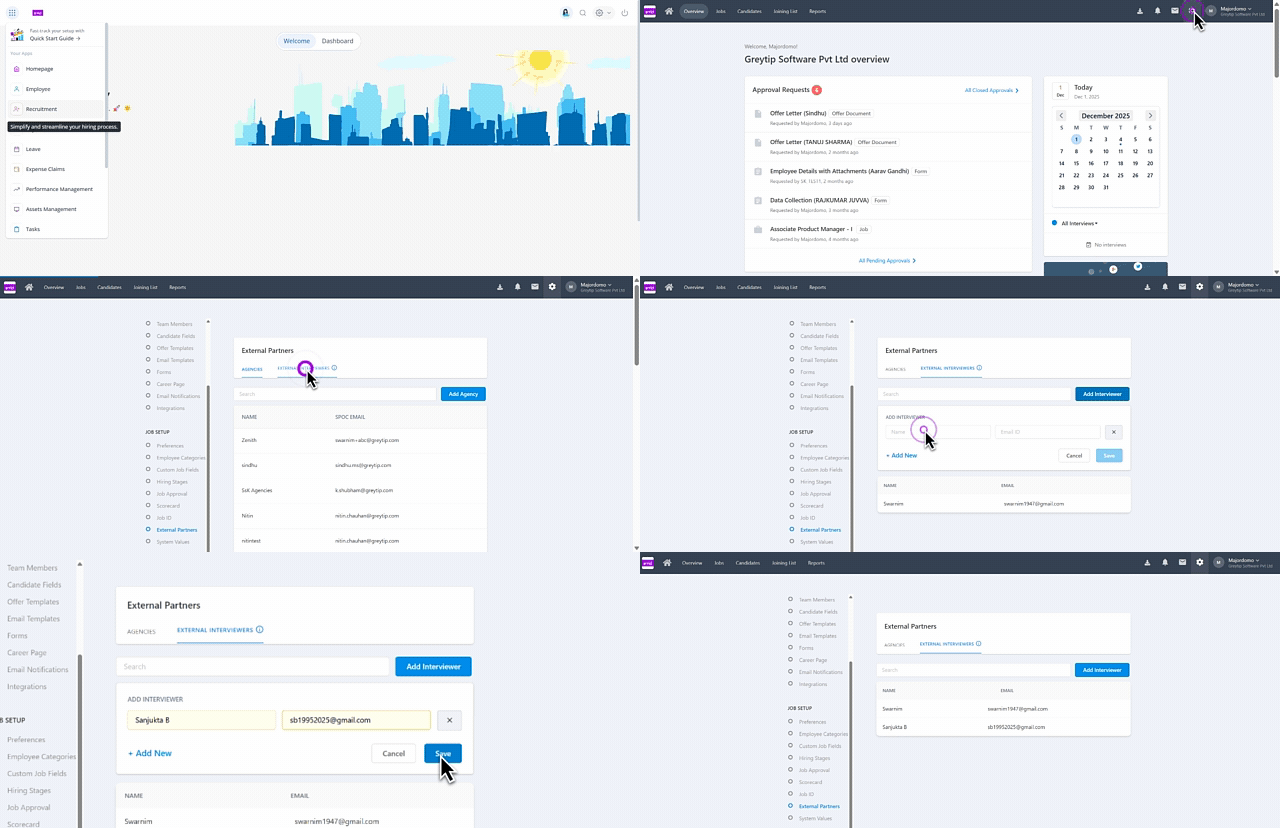
To add external interviewers to greytHR Recruit, from your greytHR Admin portal, hover over the 9 dots and select Recruitment > Settings.
From the JOB SETUP section, click External Partners.
Under the EXTERNAL INTERVIEWERS tab, click Add Interviewer.
Enter the interviewer’s name, email address, and click Save.
Use + Add New to add the details of external interviewers in bulk.

Note:
You can edit, delete, or revoke the access/details of the external interviewer if required. Hover over the external interviewer's card for whom you need to apply the action.
Add an external interviewer to a job
After adding the details of an external interviewer, you can add them to a job while creating it.
From your greytHR Admin portal, hover over the 9 dots and select Recruitment > Jobs.
Click +Add Job and select a Job Template or add the job details manually.
Set up job approval if required.
Under the Hiring Team section, click + Add External Interviewer, search for the interviewer, and click Save & Proceed.
Once added, a tag mentioned as External will appear next to the interviewer’s name.

Schedule interviews with external interviewers
To schedule an interview with any external reviewer, from your greytHR Admin portal, hover over the 9 dots and go to Recruitment > Candidates.
Select a candidate and click the Jobs tab.
Click the → icon available on the job card.
Note: You can also navigate to the Jobs tab > Candidates > click the required job card.From the Candidate Status drop-down list under the Interview section, select the required option. The Schedule Interview button appears.
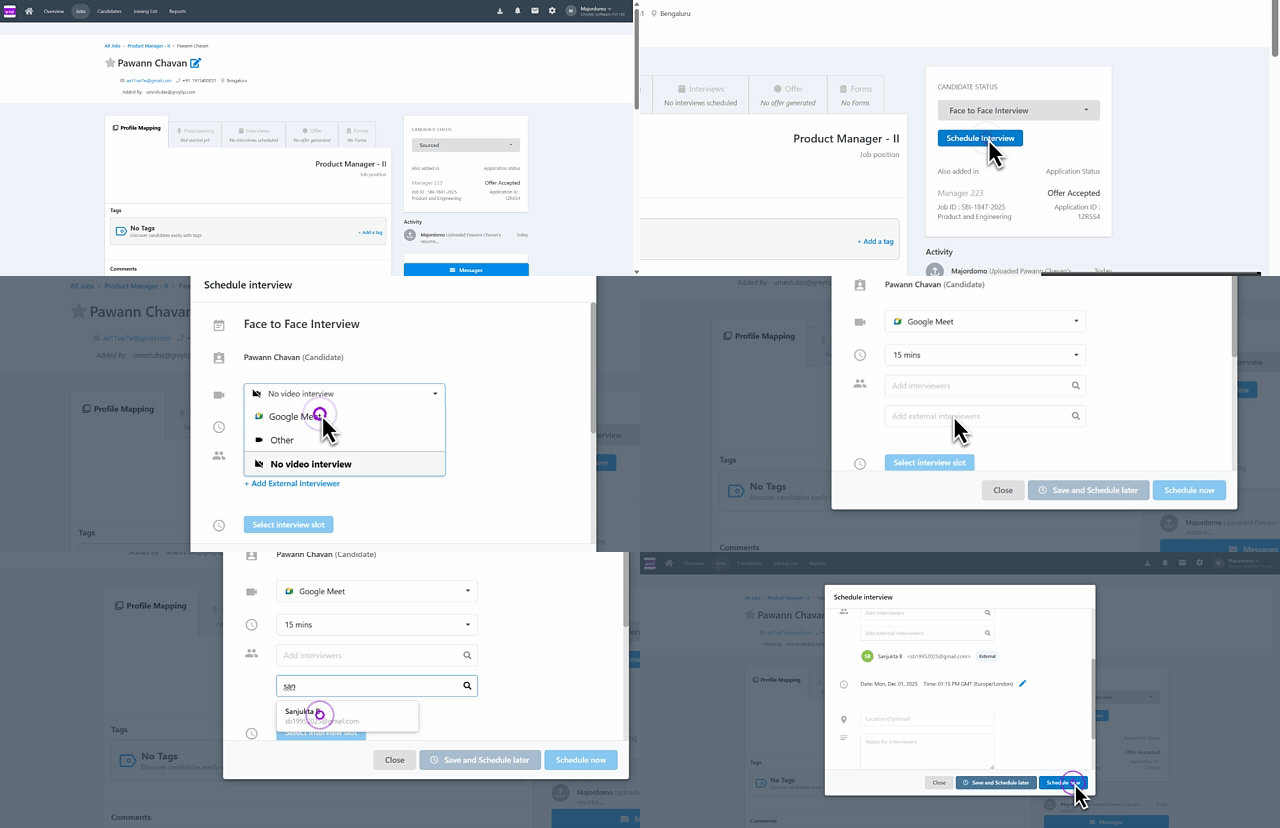
Click Schedule Interview and select the respective video conference platform as per the integration done by your admin.
You can choose to schedule the interview with Google Meet/Microsoft Teams/Zoom.
If you select it as Other, then you need to manually enter the meeting link.
Choose the interview duration from the dropdown or select a custom duration.
Click + Add External Interviewer and search for the interviewer.
Click Select interview slot. The calendar opens, allowing you to check the interviewers’ availability. Select a slot and click Done.
Update the interview date and timezone as required.
Fill in additional details such as Location, Notes for interviewers, or add an attachment if required.
Note: The Competencies list fetches the qualities to judge a candidate from the scorecard.Click Schedule now or Save and schedule later to schedule the interview later.
Once you schedule the interview, you can choose to send an invite to the candidate.
You can view the interview details under the Interviews tab.
Note:
You can reschedule the interview by clicking on the Edit icon.
You can also cancel an interview by clicking the ellipsis icon (...) > Cancel Interview.
After the interview is scheduled, the external interviewer will receive an email notification about the interview details and also a link to access the interview portal.

Info: The interview portal link remains active for seven days and automatically expires afterward.

The external interviewer has limited access to the interview portal.
On the interview portal, they can go to Interviews > Scheduled to get the details of all the upcoming interviews.
To see the interview details, they can click on an interview card.
The interviewer can fill the Scorecard after the interview time has started.
Under the Job Details tab, the detailed information about the job would appear.
The interviewer can also go through the candidate’s resume from the Resume tab.

Frequently Asked Questions
Why should organizations involve external interviewers in the hiring process?
Many organizations use external interviewers (freelancers, subject-matter experts, or agency staff) to bring in specialized expertise, ensure unbiased evaluation, and validate candidate skills, especially for specialized or high-volume roles.
How does greytHR Recruit enable external interviewers?
greytHR Recruit allows recruiters to add, manage, and track these contributors with full visibility. External interviewers access the system securely through a time-bound magic link sent via email.
How long is the interview link sent to the external interviewer active?
The interview portal link sent to the external interviewer remains active for seven days and automatically expires afterward for security.
How do I add a new external interviewer to greytHR Recruit?
To add external interviewers to greytHR Recruit, from your greytHR Admin portal, hover over the 9 dots and select Recruitment > Settings.
From the JOB SETUP section, click External Partners.
Under the EXTERNAL INTERVIEWERS tab, click Add Interviewer.
Enter the interviewer’s name, email address, and click Save.
Use + Add New to add the details of external interviewers in bulk.
Can I modify an external interviewer's details or access?
Yes, you can edit, delete, or revoke the access/details of an external interviewer as required from the External Interviews tab under External Partners settings.
How do I add an external interviewer to a specific job?
After adding the details of an external interviewer, you can add them to a job while creating it.
From your greytHR Admin portal, hover over the 9 dots and select Recruitment > Jobs.
Click +Add Job and select a Job Template or add the job details manually.
Set up job approval if required.
Under the Hiring Team section, click + Add External Interviewer, search for the interviewer, and click Save & Proceed.
Once added, a tag mentioned as External will appear next to the interviewer’s name.
How to identify an interviewer as an external partner?
An External tag will appear next to the interviewer’s name under the Hiring Team section of the job.
What is the process for scheduling an interview with an external interviewer?
To schedule an interview with any external reviewer, from your greytHR Admin portal, hover over the 9 dots and go to Recruitment > Candidates.
Select a candidate and click the Jobs tab.
Click the → icon available on the job card.
Note: You can also navigate to the Jobs tab > Candidates > click the required job card.From the Candidate Status drop-down list under the Interview section, select the required option. The Schedule Interview button appears.
Click Schedule Interview and select the respective video conference platform as per the integration done by your admin.
You can choose to schedule the interview with Google Meet/Microsoft Teams/Zoom.
If you select it as Other, then you need to manually enter the meeting link.
Choose the interview duration from the dropdown or select a custom duration.
Click + Add External Interviewer and search for the interviewer.
Click Select interview slot. The calendar opens, allowing you to check the interviewers’ availability. Select a slot and click Done.
Update the interview date and timezone as required.
Fill in additional details such as Location, Notes for interviewers, or add an attachment if required.
Note: The Competencies list fetches the qualities to judge a candidate from the scorecard.Click Schedule now or Save and schedule later to schedule the interview later.
Once you schedule the interview, you can choose to send an invite to the candidate.
You can view the interview details under the Interviews tab.
What happens after the interview is scheduled?
Once scheduled, the external interviewer will receive an email notification with the interview details and the secure, time-bound link to access the interview portal.
What can an external interviewer see on the portal?
After logging in via the link, they can see a list of their Scheduled interviews. When viewing an interview card, they can access the Job Details tab and the candidate's Resume tab.
Where does the external interviewer submit their feedback?
The external interviewer can fill out the Scorecard after the interview time has started.
Other related links:
Was this article helpful?
More resources:
▶ Video - Watch our how-to videos to learn more about greytHR.
📢 Product Update - Read about the product updates.