AI-Powered Recruitment with NAVOS in greytHR Recruit
Updated in April - 2026 | Subscribe to watch greytHR how-to video
Recruiters using greytHR Recruit today build Job Descriptions and recruitment emails manually. This results in inconsistent tone and quality across communications, significant time spent on low-value drafting, and limited personalization in candidate outreach. As hiring volumes grow, manually drafting these assets becomes time-consuming and difficult to standardize.
To address this, greytHR Recruit introduces AI-powered content generation through NAVOS. This feature enables recruiters to instantly create job descriptions, email templates, and personalized candidate communication directly within the recruitment workflow. It saves time, brings consistency to candidate communication, and keeps greytHR Recruit on par with other leading ATS platforms.
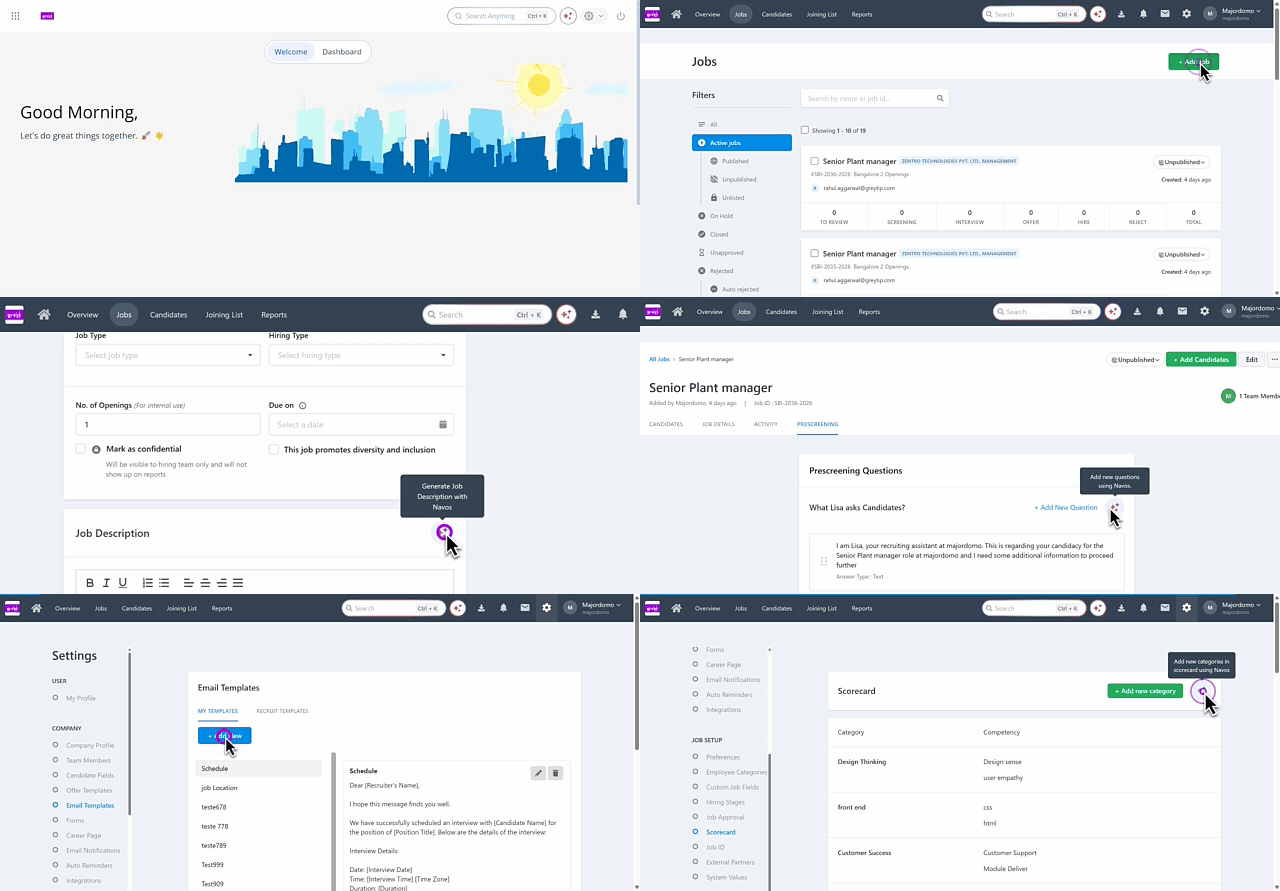
Fill job details with NAVOS
To fill the job details with NAVOS, from the greytHR Admin portal, hover over the 9 dots and select Recruitment > Jobs > + Add Job.
Click on the NAVOS ✨icon. A pop-up appears.
Mention the required information, such as the Job Title, Department, Location, CTC details and other details as needed.
The AI will auto-fill all the fields based on the information provided.
Create job description with NAVOS
To create an AI driven job description with NAVOS, from the greytHR Admin portal, hover over the 9 dots and select Recruitment > Jobs > + Add Jobs.
Under the Basic Information tab, scroll down to the Job Description section.
Click on the NAVOS ✨icon. If the job details are already filled, the AI will take the available information and create the job description.
If you want to change the content, click Regenerate.
Add new categories in the scorecard at global level
To add new categories in the scorecard at a global level, from the greytHR Admin portal, hover over the 9 dots and select Recruitment > Settings.
Under the JOB SETUP section, click Scorecard.
Click on the NAVOS ✨icon. Mention the required category. The AI will create the new category with the necessary competencies.
Click + Add new category.
Copy and paste the categories and competencies accordingly and click Save.
Create Prescreening questions
To create Prescreening questions for a job, from the greytHR Admin portal, hover over the 9 dots and select Recruitment > Jobs.

Open a job and click on the Prescreening tab.
Click on the NAVOS ✨icon and a list of questions will be created by the AI.
Click + Add New Question.
Copy and paste the question from the chatbot screen under the Question text box.
Select the Answer Type and Question Type and click Add.
Create emails for candidates
To create emails for a candidate, from the greytHR Admin portal, hover over the 9 dots and select Recruitment > Candidates.

Choose a candidate and click on the mail icon.
Fill in the required information such as From, To and Subject.
For the email body, click on the NAVOS ✨icon and the AI will generate the email template.
Copy and paste the email template in the Body and make the required changes.
Upload an attachment if needed and click Send email.
Create new email templates
To create new email templates, from the greytHR Admin portal, hover over the 9 dots and select Recruitment > Settings.

Under the COMPANY section, click Email Templates.
Click + Add New and enter the Template Title.
Click on the NAVOS ✨icon and the email template will be generated.
Copy and paste the template in the Content section.
Click Add Template.
Frequently Asked Questions
How is AI integrated in greytHR Recruit?
greytHR’s AI-powered assistant, NAVOS helps recruiters generate job descriptions, email templates, prescreening questions, and other recruitment content directly within the platform.
Where can recruiters access NAVOS in greytHR Recruit?
NAVOS is available across multiple sections such as job creation, job description, scorecards, prescreening, and email composition. Recruiters can access it using the NAVOS icon in these sections.
Do recruiters need to enter all job details before generating content?
No. Recruiters can provide basic inputs like job title, department, or location. NAVOS uses this information to auto-fill the remaining details.
What happens if job details are already filled before generating the JD?
NAVOS uses the existing job details to create a more accurate and relevant job description.
Can recruiters edit the content generated by NAVOS?
Yes. All AI-generated content can be edited, customized, or regenerated before saving or sending.
What should a recruiter do if I’m not satisfied with the generated JD?
Recruiters can click Regenerate to create a new version.
Can NAVOS generate job descriptions automatically?
Yes. NAVOS can create complete job descriptions based on the job details provided. Recruiters can also select a tone and regenerate content if needed.
Can recruiters use NAVOS to create email templates?
Yes. NAVOS can generate email templates and email body content for different stages of the recruitment process.
Can NAVOS help with sending emails to multiple candidates?
Yes. You can use NAVOS to generate email content for bulk communication and send it to multiple candidates at once.
Does NAVOS support personalization in emails?
Yes. NAVOS helps create structured and relevant email content, which can be further personalized before sending.
Can NAVOS generate scorecard categories and competencies?
Yes. NAVOS can create scorecard categories and associated competencies at global level.
Can I generate prescreening questions using NAVOS?
Yes. NAVOS can generate a list of prescreening questions, which you can review and add to the job.
To create Prescreening questions for a job, from the greytHR Admin portal, hover over the 9 dots and select Recruitment > Jobs.
Open a job and click on the Prescreening tab.
Click on the NAVOS ✨icon and a list of questions will be created by the AI.
Click + Add New Question.
Copy and paste the question from the chatbot screen under the Question text box.
Select the Answer Type and Question Type and click Add.
How do I create a job description using NAVOS?
To create an AI driven job description with NAVOS, from the greytHR Admin portal, hover over the 9 dots and select Recruitment > + Add Jobs.
Under the Basic Information tab, scroll down to the Job Description section.
Click on the NAVOS ✨icon. If the job details are already filled, the AI will take the available information and create the job description.
If you want to change the content, click Regenerate.
How to create global scorecard categories using NAVOS?
To add new categories in the scorecard at a global level, from the greytHR Admin portal, hover over the 9 dots and select Recruitment > Settings.
Under the JOB SETUP section, click Scorecard.
Click on the NAVOS ✨icon. Mention the required category. The AI will create the new category with the necessary competencies.
Click + Add new category.
Copy and paste the categories and competencies accordingly and click Save.
How to generate an email using NAVOS?
To create emails for a candidate, from the greytHR Admin portal, hover over the 9 dots and select Recruitment > Candidates.
Choose a candidate and click on the mail icon.
Fill in the required information such as From, To and Subject.
For the email body, click on the NAVOS ✨icon and the AI will generate the email template.
Copy and paste the email template in the Body and make the required changes.
Upload an attachment if needed and click Send email.
How to create an email template using NAVOS?
To create new email templates, from the greytHR Admin portal, hover over the 9 dots and select Recruitment > Settings.
Under the COMPANY section, click Email Templates.
Click + Add New and enter the Template Title.
Click on the NAVOS ✨icon and the email template will be generated.
Copy and paste the template in the Content section.
Click Add Template.
Is using NAVOS mandatory to use for recruitment tasks?
No. NAVOS is optional. Recruiters can continue to create content manually if preferred.
How does NAVOS ensure consistency in recruitment communication?
NAVOS helps maintain a consistent tone and structure across job descriptions and candidate communication.
Related articles:
Was this article helpful?
More resources:
▶ Video - Watch our how-to videos to learn more about greytHR
📢 Product Update - Read about the product updates