AI-Based candidate scoring in greytHR Recruit
Updated in May- 2026 | Subscribe to watch greytHR how-to video
Recruitment systems that rely only on keyword matching often make it difficult to identify the best-fit profiles. Resumes with matching keywords may still not suit the role, leading to similar scores across candidates and increased manual shortlisting effort.
greytHR Recruit’s AI-based candidate profile scoring feature takes the guesswork out of shortlisting by automatically evaluating each candidate against your job requirements and giving them a clear, data-driven match score.
With AI-based scoring, the system now:
Replaces vague High/Medium/Low labels with a precise percentage score
Shows a transparent breakdown of how each score is calculated
Lets you customize scoring weights globally or per job
Surfaces the top 10 best-fit candidates instantly
Evaluates candidates fairly even when resume data is incomplete
Watch the video to learn more about AI based profile scoring.
Enable AI based profile scoring
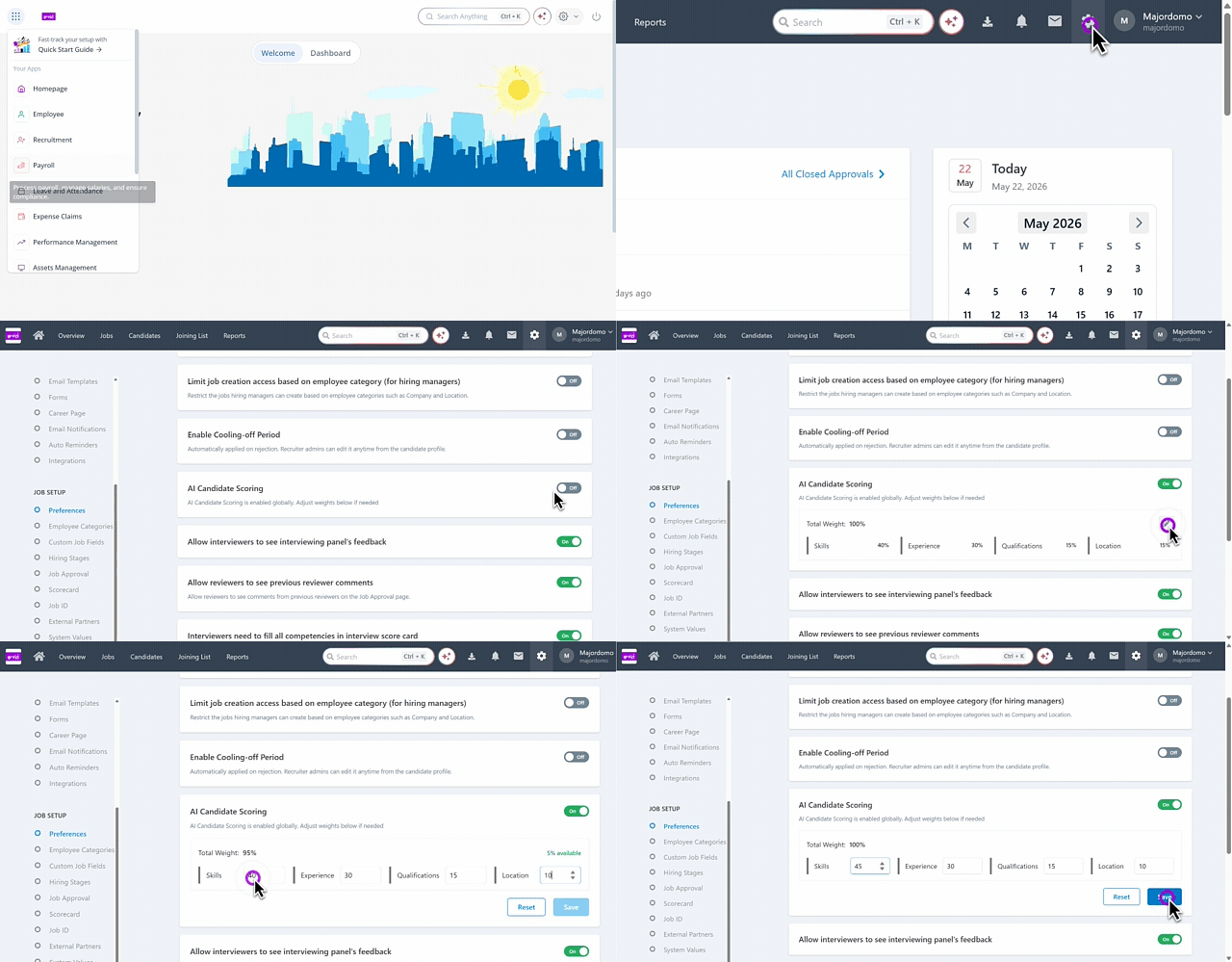
To enable AI-based candidate scoring in greytHR Recruit, from the greytHR Admin portal, hover over the 9 dots and select Recruitment > Settings > JOB SETUP.
Under the JOB SETUP section, select Preferences.
Enable the AI Candidate Scoring toggle option.
Define the total Weightage such as Skills, Experience, Qualifications and Location. The total weightage must equal 100% and cannot be less than or exceed this limit.
You can also adjust the percentage for each option as needed and click the Reset option.
Click Save to apply the scoring configuration across all jobs.
Edit AI based profile scoring weightage for a job
Once the admin has defined the weightage of all the criteria, it applied automatically to all the jobs. However, recruiters can modify the weightage while creating a job if needed.
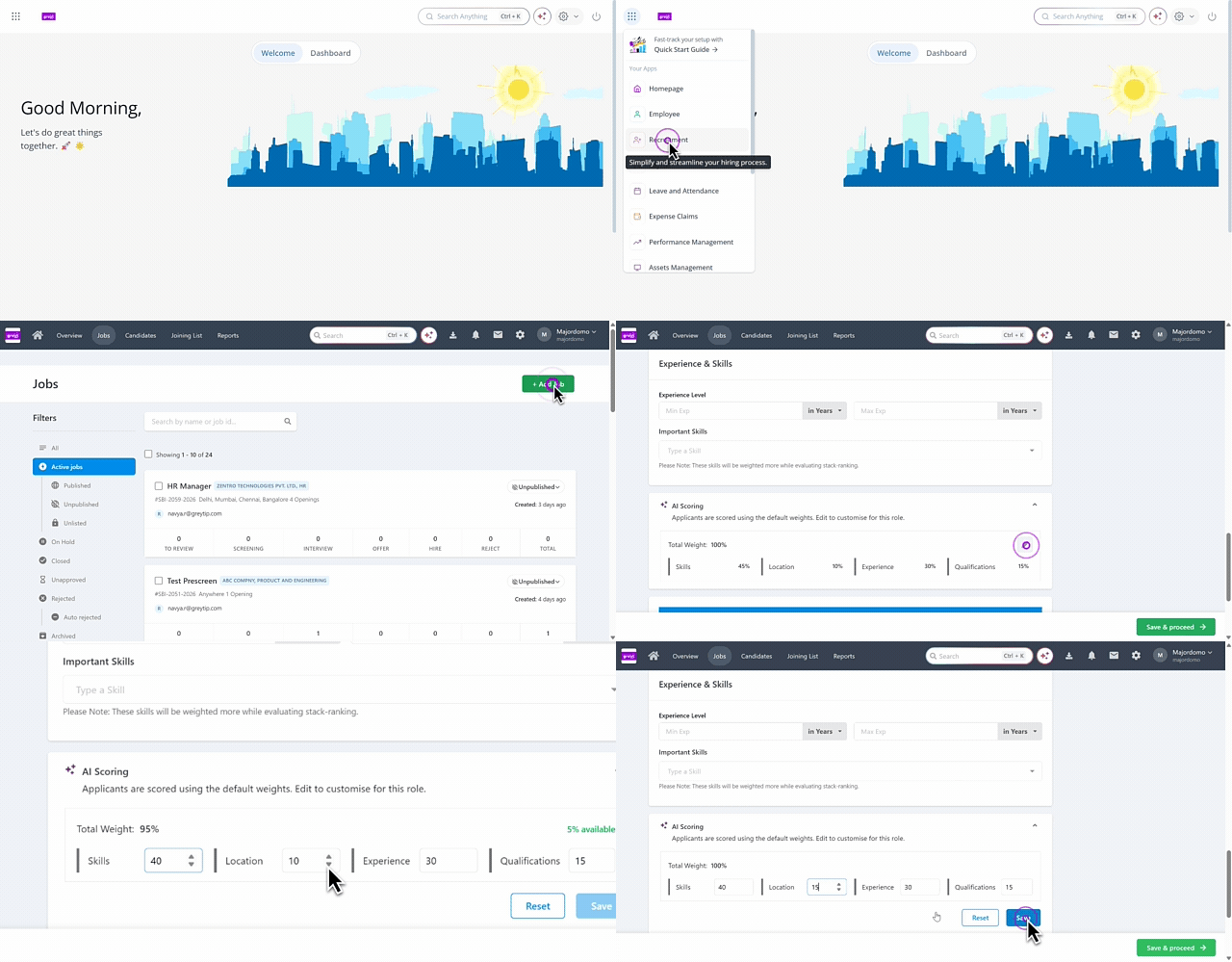
To edit the AI based profile scoring weightage, from the greytHR Admin portal, hover over the 9 dots and select Recruitment > Jobs > + Add Job.
Under the Basic Information tab, fill out all the required information and scroll down to the AI scoring card.
Expand the option and edit the weightage for the required criteria and click Save.
View candidates’ with AI based profile scoring
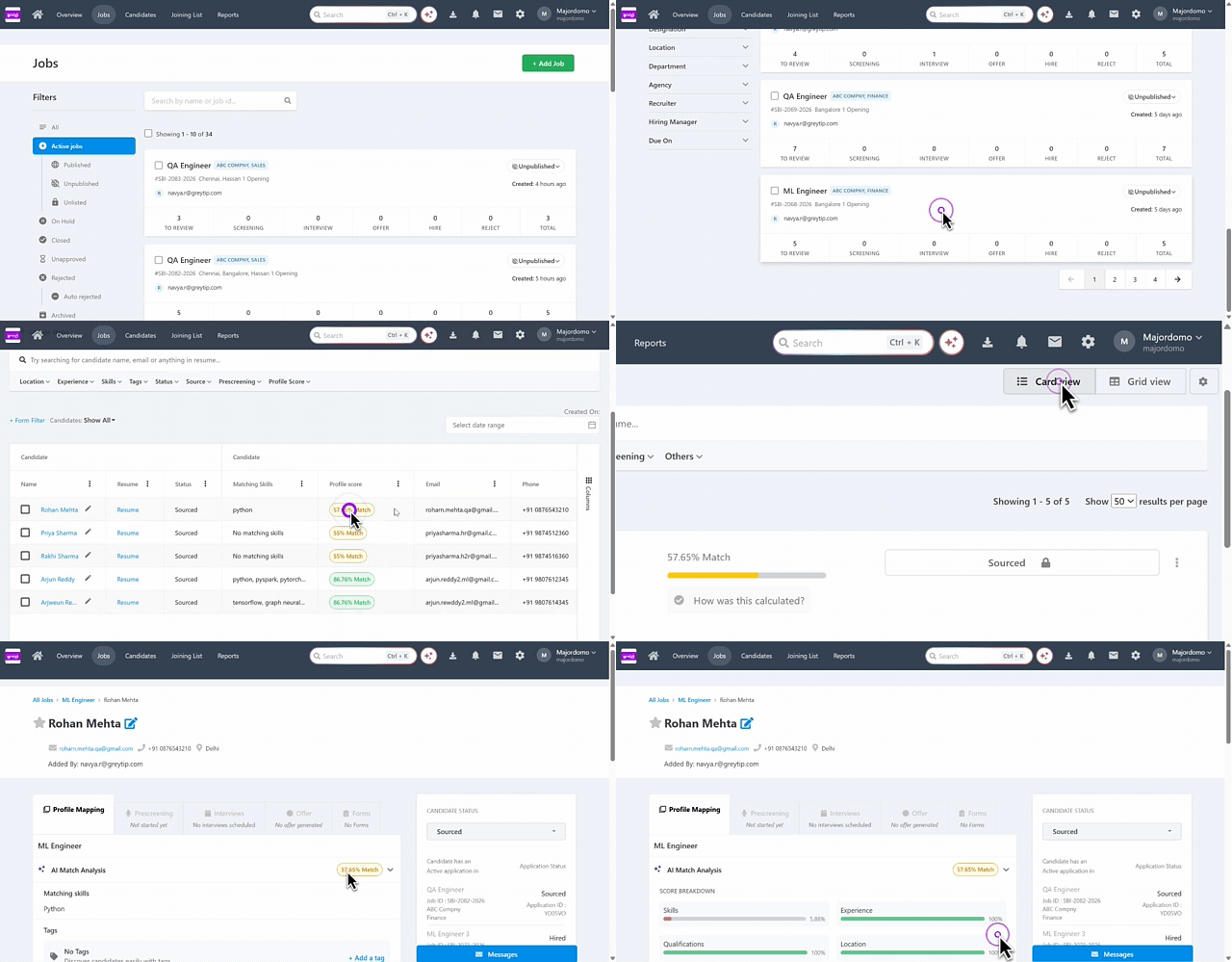
To view the candidates profiles with the AI based profile scoring for a job, from the greytHR Admin portal, hover over the 9 dots and select Recruitment > Jobs.
Select on the job card to view the candidates’ list.
Under the Candidates tab, you can view the AI based profile scoring in the Profile Score column.
Hover over the score to view the detailed scoring breakdown based on each criterion, along with the AI-generated summary. This is applicable for both Grid and Card view.
If you want to add the candidate to a job, click Add to job.
Note: Within the candidate’s profile details, you can also view the AI-based profile score, including the breakdown for each criterion and the AI-generated summary.
Frequently Asked Questions
What is AI-based profile scoring in greytHR Recruit?
AI-based profile scoring evaluates how well a candidate’s resume matches the job requirements. It analyzes multiple factors such as skills, experience, qualifications, and location to generate a transparent score that helps recruiters identify the most suitable candidates.
How is the AI profile score calculated?
The score is calculated based on the weightage assigned to criteria such as skills, experience, qualifications, and location. The system compares candidate resumes with the job requirements and generates a score based on how well they match each criterion.
Who can enable AI-based candidate scoring?
Only Recruiter Admins and users with the appropriate permissions can configure global scoring weights in Hiring Preferences.
How to enable AI-based candidate scoring in greytHR Recruit?
To enable AI-based candidate scoring in greytHR Recruit, from the greytHR Admin portal, hover over the 9 dots and select Recruitment > Settings > JOB SETUP.
Under the JOB SETUP section, select Hiring Preferences.
Enable the AI Candidate Scoring toggle option.
Define the total Weightage such as Skills, Experience, Qualifications and Location. The total weightage must equal 100% and cannot be less than or exceed this limit.
You can also adjust the percentage for each option as needed and click the Reset option.
Click Save to apply the scoring configuration across all jobs.
Will the scoring weightage apply to all jobs once it is configured?
Yes. Once the admin configures the weightage for the scoring criteria, it is automatically applied to all jobs by default. However, recruiters can modify the weightage while creating or editing a specific job if required.
Can recruiters change the scoring weightage for a job?
Yes. While the admin-defined weightage is applied by default to all jobs, recruiters can modify the scoring weightage while creating or editing a specific job. These changes apply only to that job.
How can recruiters change the scoring weightage for a job?
To edit the AI based profile scoring weightage, from the greytHR Admin portal, hover over the 9 dots and select Recruitment > Jobs > + Add Job.
Under the Basic Information tab, fill out all the required information and scroll down to the Default AI scoring will be applied to this job option.
Expand the option and edit the weightage for the required criteria and click Save.
What happens if a recruiter changes the scoring weightage for a specific job?
If a recruiter updates the scoring weightage while creating or editing a job, the changes apply only to that particular job. The default scoring configuration set by the admin for other jobs remains unchanged.
What happens if the total weightage for all the criteria is not 100%?
The system does not allow saving the configuration unless the total weightage equals 100%.
How can a recruiter view the AI score for a candidate?
To view the candidates profiles with the AI based profile scoring for a job, from the greytHR Admin portal, hover over the 9 dots and select Recruitment > Jobs.
Select on the job card to view the candidates’ list.
Under the Candidates tab, you can view the AI based profile scoring in the Profile Score column.
Hover over the score to view the detailed scoring breakdown based on each criterion, along with the AI-generated summary. This is applicable for both Grid and Card view.
If you want to add the candidate to a job, click Add to job.
Can recruiters see the detailed scoring for each candidate?
Yes. Recruiters can expand the Score Breakdown to view how the candidate was evaluated across different criteria, along with an AI-generated summary.
Is the AI score visible inside the candidate’s profile?
Yes. Within the candidate’s profile, you can view the detailed AI-based profile score, including the breakdown for each criterion and the AI summary.
Can candidates view their AI profile score?
No. The AI profile score and its detailed breakdown are for internal use only and are not visible to candidates.
Does the AI automatically accept or reject candidates?
No. The AI does not make any hiring decisions. It only assists with initial screening, while recruiters retain full control over candidate selection.
Does the AI evaluate personality or culture fit?
No. The AI does not assess personality, intent, or culture fit. It evaluates candidates based only on objective factors such as skills, experience, and qualifications.
How are candidates scored using the AI-based profile scoring?
Each candidate receives an overall score between 0 and 100. This score is calculated based on four key criteria:
Skills fit: How well the candidate’s skills match the job requirements
Experience fit: Alignment of the candidate’s experience with the required range
Qualification fit: Match between the candidate’s education/certifications and job requirements
Location fit: Alignment with the job’s location requirements
How are candidates ranked in the system?
Candidates are assigned a numeric score (0–100) and grouped into categories such as High, Medium, or Low. You can also sort and filter candidates based on their overall score or individual criteria scores to identify the best-fit profiles quickly.
Can AI scoring be turned off for specific jobs?
Currently, AI scoring is applied to all active jobs automatically. You can continue using the traditional candidate list view if preferred.
How often are profile scores recalculated?
Scores are recalculated automatically whenever the candidate's profile data or the job's requirements and weightage are updated.
What happens if a candidate has a very low match score?
Low-scoring candidates remain in your candidate list. The score is a guide to help you prioritize, not a filter that removes candidates.
What happens if a candidate’s resume is missing information?
The system does not unfairly penalize candidates for missing data. If a specific criterion cannot be evaluated due to insufficient information, it is assigned a neutral score of 50/100. A missing data indicator and coverage flag are also shown to highlight incomplete profile details.
Related article:
AI-Powered Recruitment with NAVOS
Was this article helpful?
More resources:
▶ Video - Watch our how-to videos to learn more about greytHR
📢 Product Update - Read about the product updates