Manage Custom Fields in greytHR Recruit
Updated in June - 2026| Subscribe to watch greytHR how-to video
When managing recruitment, every organisation has unique data requirements that go beyond standard candidate, application, and job information. Capturing this additional data in a structured way and being able to report on it is essential for making informed hiring decisions and maintaining accurate records.
greytHR Recruit's Custom Fields feature allows admins to define and manage additional fields tailored to their organisation's needs. These fields are organised into three types — Candidate Fields, Application Fields, and Job Fields each scoped to a specific entity, and all configured from a single settings page. Once set up, custom fields appear across the relevant pages in the product and are available as columns, filters, and exports in key Recruit reports.
Configure Custom Fields
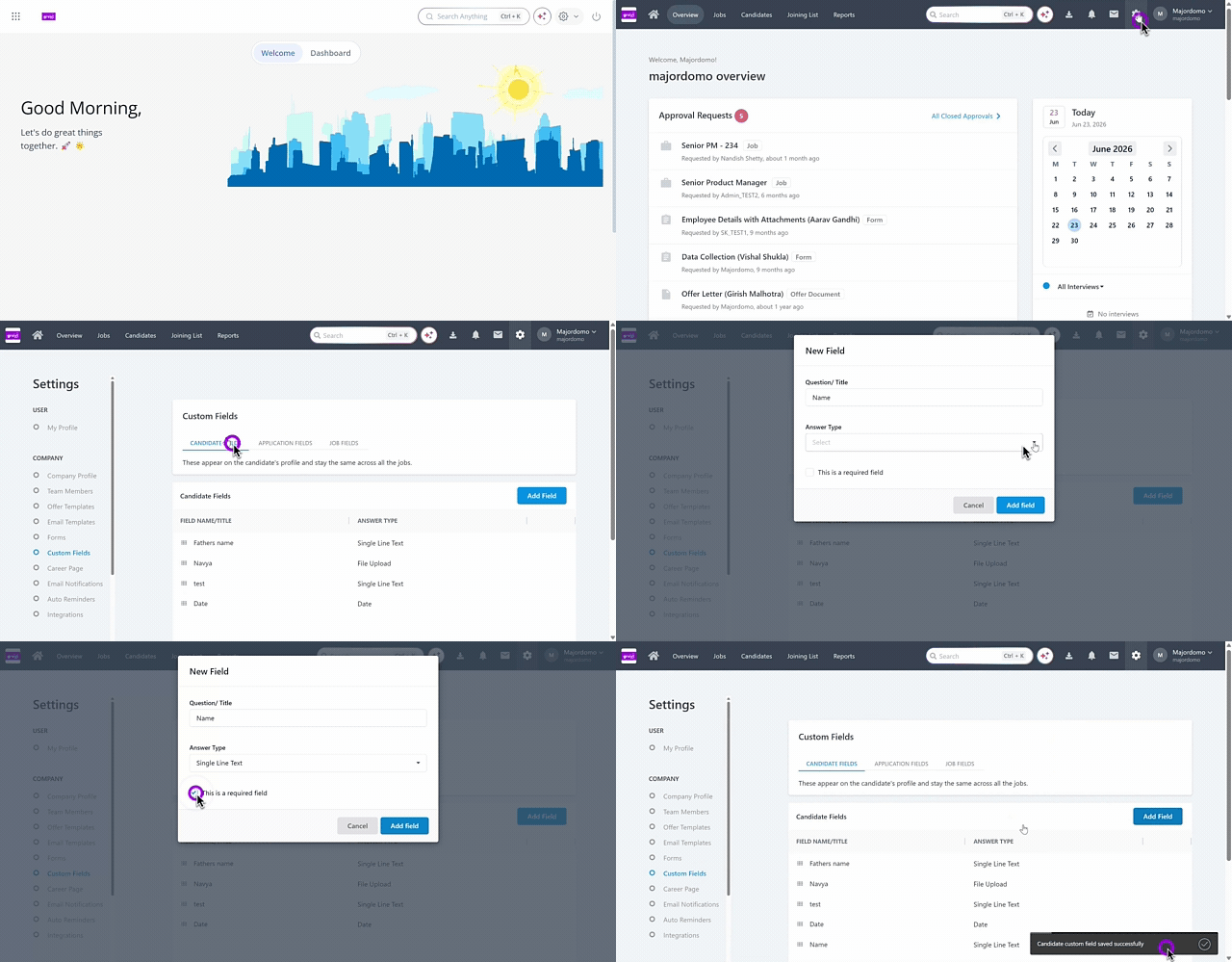
To configure Custom Fields from the greytHR Admin portal hover over the 9 dots and go to Recruitment > Settings > Company > Custom Fields.
The Custom Fields page contains three tabs: Candidate Fields, Application Fields, and Job Fields.
Add a custom field
Go to Settings > Company > Custom Fields.
Select the tab for the field type you want to create.
Click + Add Field. The New Field pop-up appears.
Enter the following:
Question/Title – Enter a descriptive label.
Answer Type – Select the required option from the dropdown.
Toggle on This is a required field, if the field must be filled before saving.
Click Add.
Edit or delete a custom field
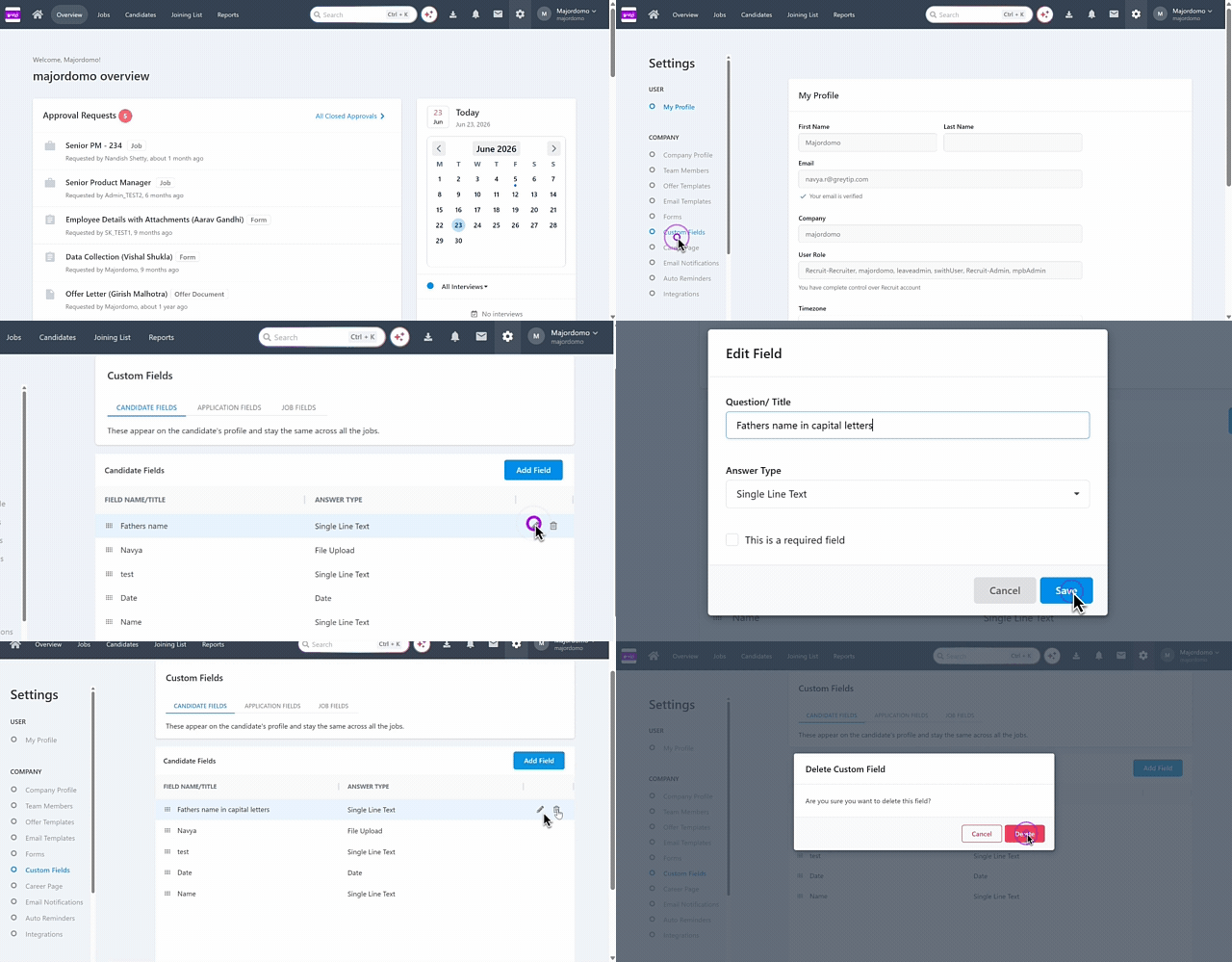
From the Custom Fields page, select the relevant tab.
Locate the field, click the Edit icon, update and click Save.
To delete a field, select the required field and click the Delete icon. A pop up appears. Click Delete.
Note: Field types cannot be changed after a custom field is saved. To use a different type, delete the existing field and create a new one.
Where custom fields appear
Candidate and Application Custom fields
Fields configured in the Custom Fields section in Settings for Candidate and Application custom fields will appear on the Candidate Details page.
When a recruiter opens a candidate's application, two sections appear:
Candidate Fields — Displays fields configured under the Candidate Fields tab. Data is linked to the candidate and is shared across all their applications.
Application Fields — Displays fields configured under the Application Fields tab. Data is stored per application, specific to that candidate–job combination.
Job Custom Fields
Fields configured under the Custom Fields section in Settings for the Job Custom Fields will appear in the Add job page.
Use custom fields in reports
Custom fields are available in the following reports:
Jobs report
Pipeline report
Candidates report
Add custom fields as columns
Open the relevant report.
Click Columns to open the column selector.
Select the custom fields you want to display. In the Candidates report, Candidate Fields and Application Fields are listed as separate groups. In the Job report, Job Custom Fields are listed.
Filter by custom fields
In the relevant report, scroll to the Filters section.
Under Custom Fields, select the field you want to filter by. In the Candidates report, Candidate Fields and Application Fields appear as separate filter groups.
Export custom fields
When you export a report as a CSV, all custom field columns visible in the current report view are included in the export.
Frequently Asked Questions
What are the three types of custom fields available in greytHR Recruit?
greytHR Recruit supports three types of custom fields:
Candidate Fields – Linked to the candidate as a person. Values are shared across all jobs the candidate applies to and appear on both the Hiring Stages page and the Candidate Profile.
Application Fields – Linked to a specific job application. Values are unique to each candidate–job combination and appear on the Hiring Stages page.
Job Fields – Linked to a job opening. These appear on the job creation and job details pages.
Who can create or manage custom fields?
Only users with admin-level permissions can access and manage field configurations. Recruiters can view and fill in custom fields on the Hiring Stages page and Candidate Profile page based on their existing role permissions.
Where do Candidate and Application custom fields appear?
Both appear on the Candidate Details page when a recruiter opens a candidate's application. Candidate Fields display data linked to the candidate and shared across all their applications, while Application Fields display data specific to that candidate–job combination.
What is the difference between Candidate Fields and Application Fields?
Candidate Fields store data at the candidate level — the same data appears across all of their applications. Application Fields store data at the application level, so each candidate–job combination has its own set of values.
Where do Job Fields appear?
Job Custom Fields appear on the Add Job page.
Which reports support custom fields?
Custom fields are available in the Jobs report, Pipeline report, and Candidates report.
How do I add custom fields as columns in a report?
Open the relevant report, click Columns to open the column selector, and select the custom fields you want to display.
How are custom fields organized in the Candidates report column selector?
Candidate Fields and Application Fields are listed as separate groups in the column selector, as well as in the Filters section.
Can I filter reports by custom fields?
Yes. In any supported report, scroll to the Filters section and select the field you want to filter by under Custom Fields.
Are custom fields included when I export a report?
Yes. When you export a report as a CSV, all custom field columns that are currently visible in the report view are included in the export.
Can I change the type of a custom field after it has been created?
No. The field type cannot be changed once a custom field is saved. To use a different type, deactivate the existing field and create a new one.
Related Article:
Was this article helpful?
More resources:
▶ Video - Watch our how-to videos to learn more about greytHR.
❓ FAQs - Solve your queries using FAQs.
📢 Product Update - Read about the product updates.