Setup Auto Reminders for recruit workflows in greytHR Recruit
Updated in April - 2026 | Subscribe to watch greytHR how-to video
Recruitment workflows involve multiple users such as recruiters, interviewers, hiring managers, and candidates. When actions like interview feedback submission, form completion, or offer acceptance are delayed, the entire hiring process slows down.
To address this, greytHR Recruit provides an Auto Reminder system that automatically sends reminders to relevant users when actions are pending. These reminders help ensure timely completion of tasks and reduce the need for manual follow-ups by recruiters.
Benefits of using Auto Reminders
Reduce delays between recruitment stages
Improve interview feedback submission timelines
Ensure faster offer approvals and candidate responses
Minimize manual follow-ups by recruiters
Improve overall hiring efficiency
Watch the video to know more on Auto Reminder in greytHR Recruit:
Configure Auto Reminders in greytHR
To access and configure Auto Reminders, from the greytHR Admin portal, hover over the 9 dots and go to Recruitment > Settings.
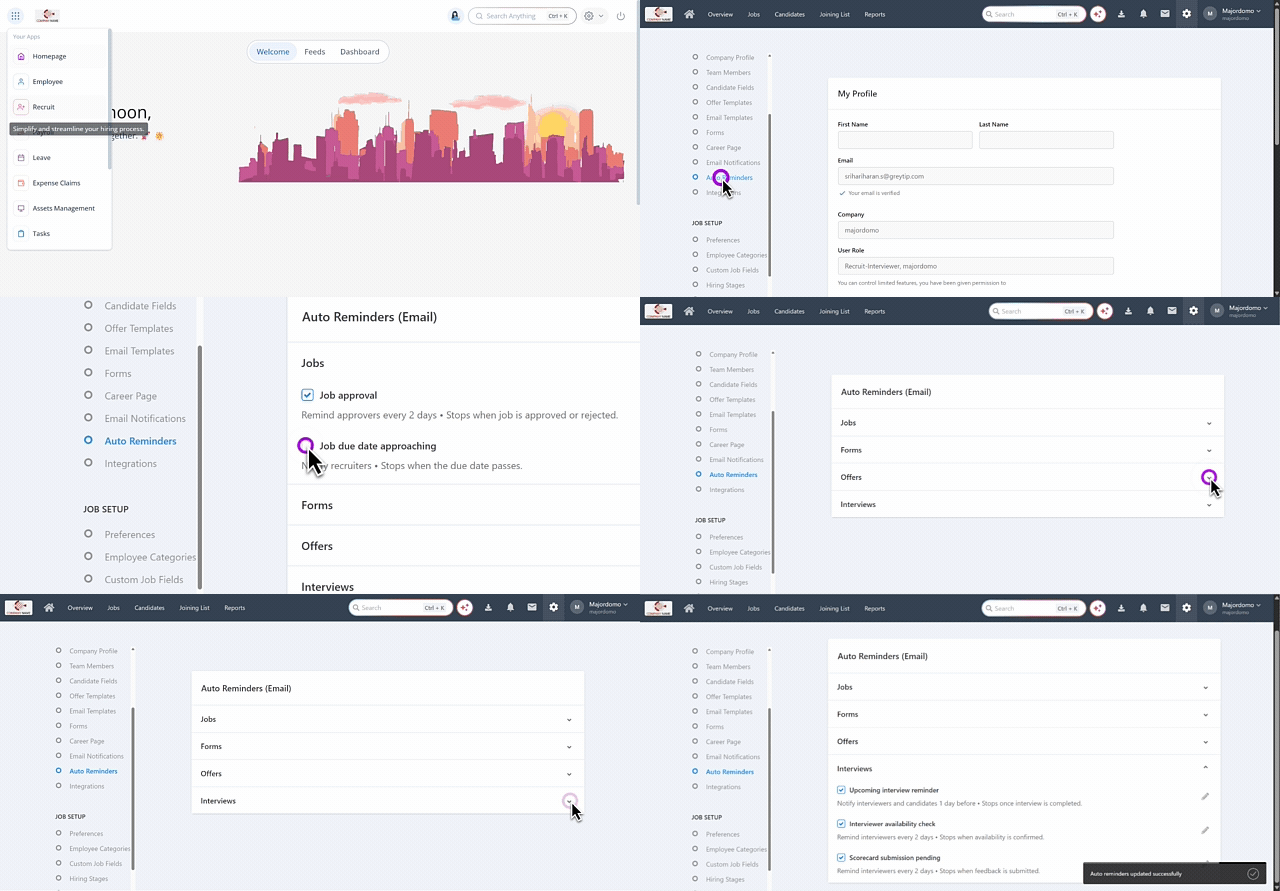
Under the Company section, select Auto Reminders. The Auto Reminders page displays reminder categories in collapsible sections.
Select the required reminder options from the dropdown under each categories.
Once enabled, the system automatically monitors recruitment events and sends reminders when actions remain pending.
Reminders are triggered based on predefined recruitment events and sent to the relevant users. They continue according to the configured frequency and automatically stop once the required action is completed.
Available options for Auto Reminders
On the Auto Reminders page, reminders are grouped based on different stages of the recruitment workflow. To view the available reminder options, click the down arrow next to the required section.
Jobs
The Jobs section contains reminders related to job management activities.
Job approval – Reminds reviewers to take action on pending job approval requests.
Job due date approaching – Notifies recruiters when a job’s due date is approaching so they can take necessary action.
Forms
This section helps track pending document or form submissions.
Form submission – Sends reminders to candidates to complete assigned forms until they are submitted.

Interviews
The Interviews section allows admins to configure reminders related to interview activities.
Upcoming interview reminder – Notifies candidates and interviewers before the scheduled interview. The reminder stops once the interview is completed.
Scorecard submission – Reminds interviewers to submit interview feedback until the scorecard is submitted.
Interviewer availability check – Sends reminders to interviewers to confirm their availability for scheduled interviews.

Offers
The Offers section helps ensure that offer-related actions are completed on time.
Offer approval review – Reminds approvers to review pending offer approvals. The reminder stops once the offer is approved or rejected.
Offer response pending – Sends reminders to candidates to accept or reject the offer until they respond.

Configure reminder settings
To modify reminder settings:
Expand the required section and click the Edit icon next to the reminder option.The reminder configuration pop-up appears.
In the pop-up window, you can configure the following settings:

Reminder frequency
Select how often the reminder should be sent (for example, every few days).
Who receives this?
Displays the users who will receive the reminder notification, such as approvers, recruiters, interviewers, or candidates, depending on the reminder type.
Automatically stops
Defines when the reminder should stop automatically. For example, reminders stop when the related action is completed (such as when a job is approved or rejected).
After configuring the required settings, click Save changes to apply the reminder configuration.
Frequently Asked Questions:
What are Auto Reminders in greytHR Recruit?
Auto Reminders are automated notifications sent to relevant users — such as recruiters, interviewers, hiring managers, and candidates — when a required action is pending in the recruitment workflow. They help ensure tasks are completed on time without manual follow-up.
Which recruitment activities have Auto Reminder support?
Auto Reminders are available across four key areas of the recruitment workflow:
Jobs – Job approval, Job due date approaching
Forms – Form submission
Interviews – Upcoming interview reminder, Scorecard submission, Interviewer availability check
Offers – Offer approval review, Offer response pending
How can I enable an Auto Reminder?
To configure an Auto Reminder, from the greytHR Admin portal, hover over the 9 dots and go to Recruitment > Settings.
Under the Company section, select Auto Reminders. The Auto Reminders page displays reminder categories in collapsible sections.
Select the required reminder options from the dropdown under each categories.
Can I customize how frequently reminders are sent?
Yes. For each reminder, you can configure the frequency (for example, every few days) by clicking the Edit icon next to the reminder option and adjusting the settings in the configuration pop-up.
Who receives the reminder notifications?
The recipients depend on the reminder type. The Who receives this? field in the configuration pop-up shows the relevant users — which could be approvers, recruiters, interviewers, or candidates — for that specific reminder.
Will reminders keep sending indefinitely?
No. Each reminder has an Automatically stops condition defined in its configuration. For example:
The Offer approval review reminder stops once the offer is approved or rejected.
The Upcoming interview reminder stops once the interview is completed.
The Form submission reminder stops once the candidate submits the form.
Do I need to manually stop a reminder once an action is completed?
No. The system automatically stops sending reminders as soon as the required action is completed, based on the configured stop condition.
Can I configure reminders for some categories and leave others disabled?
Yes. Each reminder category and option is independently configurable. You can enable, configure, or leave unchanged any individual reminder based on your organization's needs.
What happens if I don't save my changes after editing a reminder?
Changes will not be applied unless you click Save changes in the configuration pop-up. Always save after making any modifications to reminder settings.
How do Auto Reminders improve the hiring process?
Auto Reminders reduce delays between recruitment stages by ensuring timely feedback, faster offer approvals, and prompt candidate responses — all without requiring recruiters to send manual follow-up messages
Can I disable a specific Auto Reminder?
Yes. Admin users can disable or modify reminder settings from the Auto Reminders page by editing the respective reminder configuration.
What reminders are available under the Jobs section?
The Jobs section includes two reminders: Job approval, which nudges reviewers to act on pending job approvals, and Job due date approaching, which alerts recruiters when a job's closing date is near.
What does the Form submission reminder do?
It sends automated reminders to candidates who have been assigned forms but have not yet submitted them. The reminder continues until the form is submitted.
Which users are notified by the Upcoming interview reminder?
Both the candidate and the interviewer receive this reminder before the scheduled interview. It automatically stops once the interview is marked as completed.
What is the Scorecard submission reminder used for?
This reminder is sent to interviewers who have not yet submitted their feedback or scorecard after an interview. It continues until the scorecard is submitted.
What is the Interviewer availability check reminder?
This reminder is sent to interviewers asking them to confirm their availability for a scheduled interview, helping avoid last-minute scheduling conflicts.
When does the Offer approval review reminder stop?
The Offer approval review reminder stops automatically once the approver either approves or rejects the offer — whichever action is taken first.
What triggers the Offer response pending reminder?
This reminder is triggered when a candidate has not yet responded to an offer extended to them. It continues until the candidate accepts or rejects the offer.
Can reminders from different sections — like Interviews and Offers — be active at the same time?
Yes. Reminders across all sections operate independently. You can have multiple reminders active simultaneously across Jobs, Forms, Interviews, and Offers without them interfering with each other.
Related article:
Configure/set up email sender domain and SPF in greytHR Recruit
Was this article helpful?
More resources:
▶ Video - Watch our how-to videos to learn more about greytHR
📢 Product Update - Read about the product updates